

How to read the model list
Image Models
Open the model menu by clicking the button at the bottom of the prompt box. Each model has text describing the details of that model. The green numbers are the range of how much that model costs depending on your chosen settings.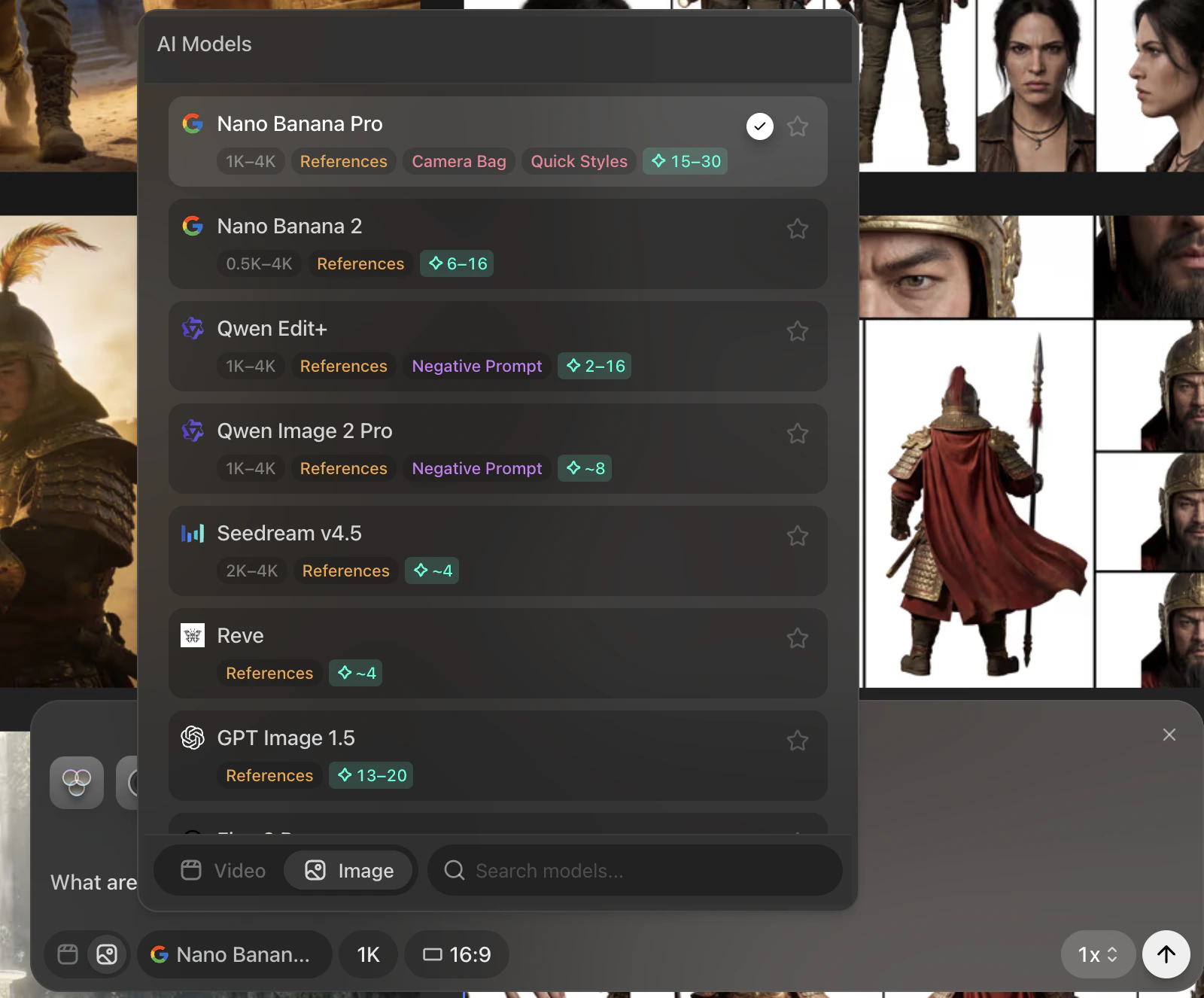
- The grey number is the resolution that the model can generate
- ‘References’ means the model can use reference images - each model has a unique number of allowed reference images
- You can see how many reference images a model allows you to use and how many you have used by looking at the number beside the +ref box in the prompt box top bar
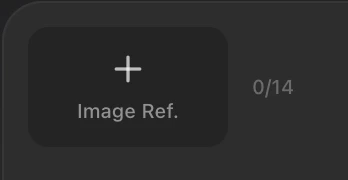
- You can see how many reference images a model allows you to use and how many you have used by looking at the number beside the +ref box in the prompt box top bar
- ‘Negative Prompt’ means the model lets you use negative prompt text in your prompt.
- The Negative Prompt box can be accessed by clicking the Negative Prompt icon in the lower right of the box
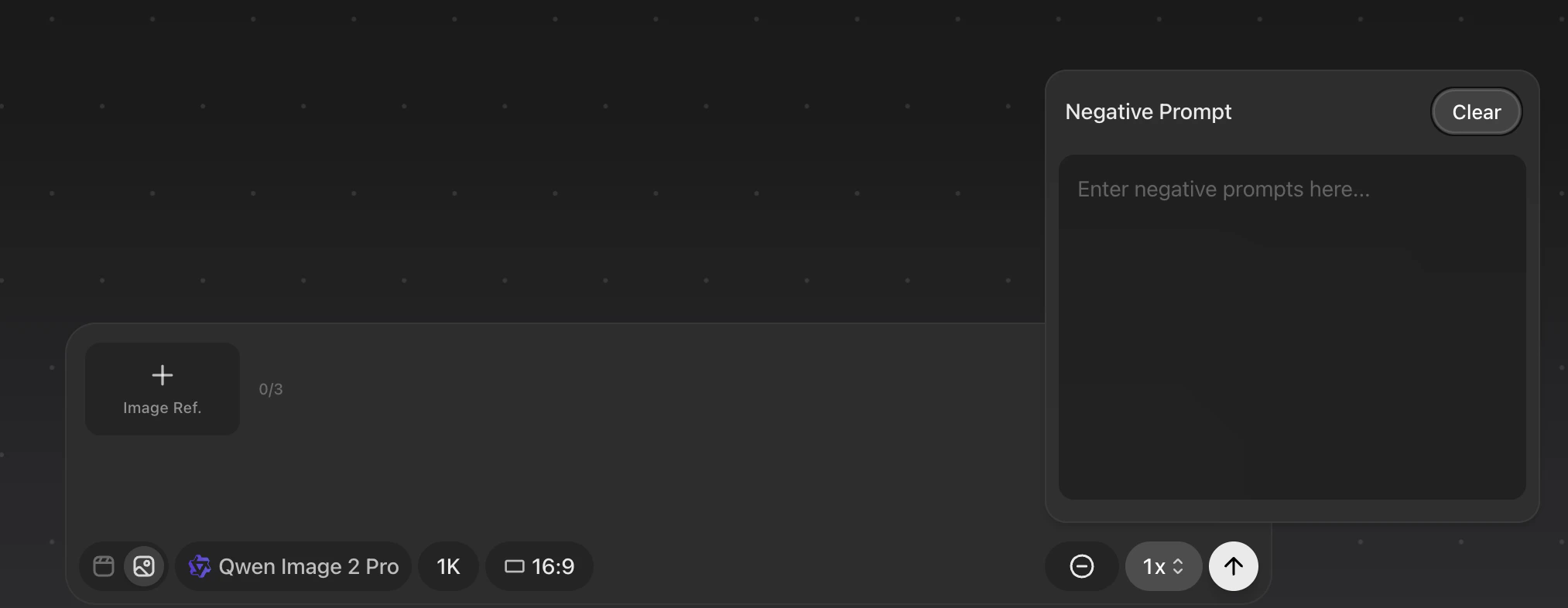
- The Negative Prompt box can be accessed by clicking the Negative Prompt icon in the lower right of the box
Video Models
The video models tend to have more information and possible settings and its important to pay attention to the choices you are making because your settings will drastically affect cost of generation.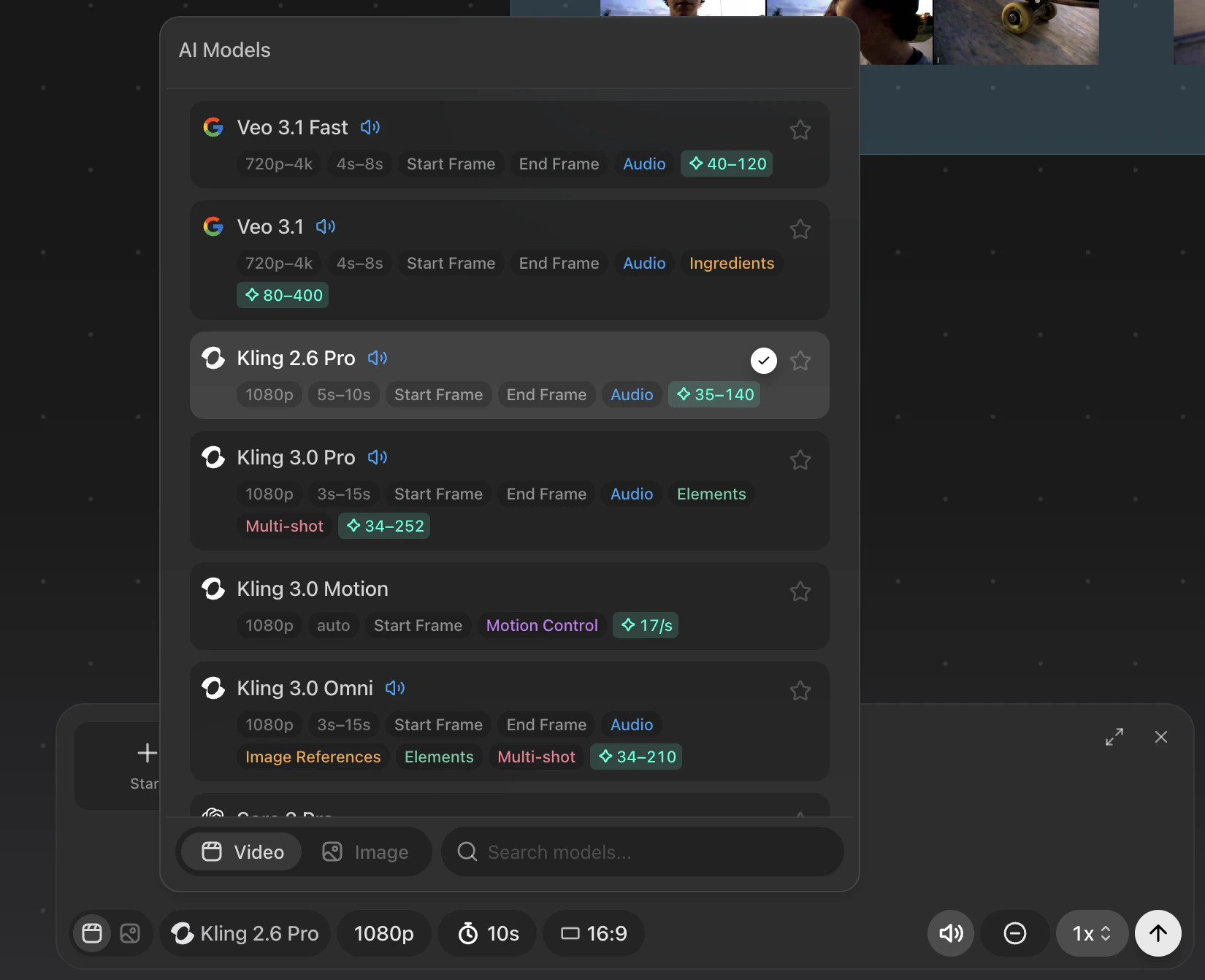
- ‘Audio’ means the model allows you to choose if you want Audio on or off in the generation. You can turn this on or off by clicking the speaker icon in the bottom right of the prompt box.
- Some models allow you to choose a Start or End Frame, other models you must first choose a Start Frame before you can add an End Frame.
To learn more about a specific models unique features visit that models page
- Veo 3.1
- Kling 3.0 Pro
- Kling 3.0 Omni