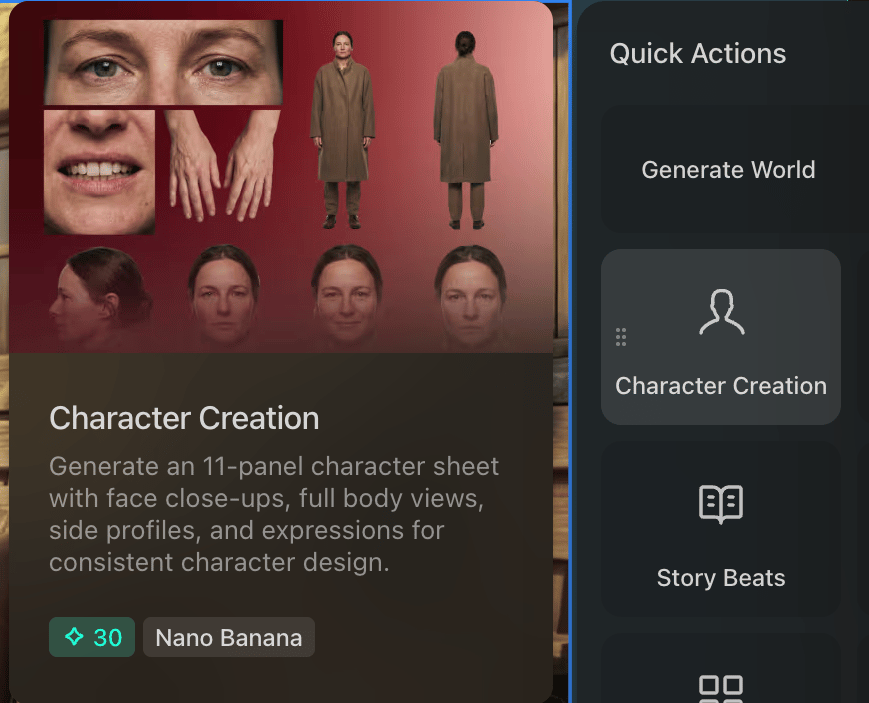
Character sheets are the most useful and simplest way to reference characters within prompts and produce consistent results.

How to use Character Sheets

Using character sheets for image creation
A single character sheet containing multiple images grouped together will work better than using multiple individual images of a character as individual references within a single prompt.
In Preview we have a helpful one-click action to create a character sheet from any image that clearly features a character. We recommend generating several sheets, as each will be slightly different and its best to choose your favorite.
Charactersheet
Best practice is to use the Character Creation button on any image that clearly shows the character you want to create a sheet for. This image of the character can have background elements or be on a plain background. Any props the character is holding will show up in the character sheet. If the starting image does not show the full character the character sheet creator (nano banana) will fill in the rest of the character concept for you. The Character Creation tool generates a character sheet featuring a wide front and back shot, extreme close up of eyes, extreme close up of teeth, 3 different facial expressions, close up face, hands, face left and right profile.
Character Sheet
There is no mandatory layout for character sheets, but ours covers a wide variety of potential needs. Teeth, eyes, and hands are very useful when a character has specific features like jewelry or missing teeth or a unique eye color. If you are only using wide shots of your character sometimes these little details can be lost in reference. If you are working on a character that needs a high level of customization and consistency from all angles, it’s best to generate your angles one by one and isolate each image of your character on a white background and then manually combine all of those elements into a single character sheet using a photo editing application like Photoshop. Using character sheets as Elements with Kling Kling allows you to choose up to 4 images of a character to use within an Element to keep consistency in your video generation. Its important to use images of characters on neutral backgrounds to avoid any features bleeding into your elements. Each element requires a primary front facing image of your character and Kling suggests that you also include side, back and any detail shots of your character. We recommend creating simple character sheets to enhance this experience. We suggest creating individual sheets for each angle. Each of these sheets should feature a medium/close up and a full body wide shot from the same angle. If there are any specific details, like a tattoo, scars, text on clothing, etc. we suggest creating a single image just for that detail feature.
Character Front
Character Right
To learn more about how to use Elements visit Kling 3.0 Pro