

Add references to the prompt box
Preview allows you to add reference images and videos to your prompts. Each model has their own rules and requirements for references. Image models accept image references. Depending on the video model they can accept Images, Videos, Elements or ingredients.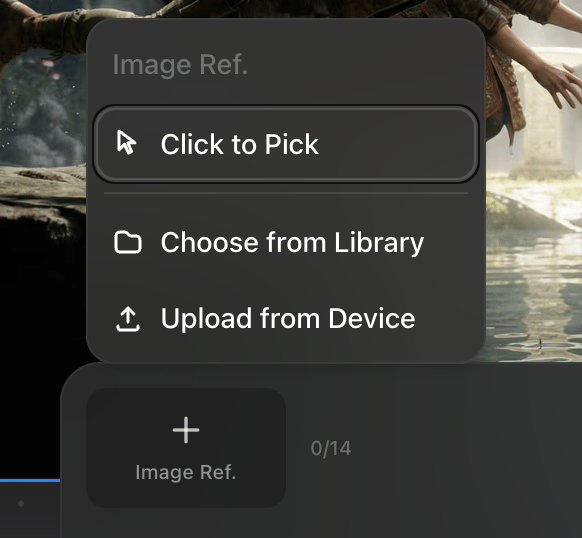
Choose a reference source
You can add references through the prompt box by using:- Click to Pick to select any image on the canvas
- Upload from Device to bring in a local file
- Choose from Library to pull from saved characters, locations, props, shots, or assets
Add references from canvas controls
If an image or video is already on the canvas, you can also use the target icon on that image and choose Ref. as Image. This is useful when you are iterating quickly and do not want to reopen library menus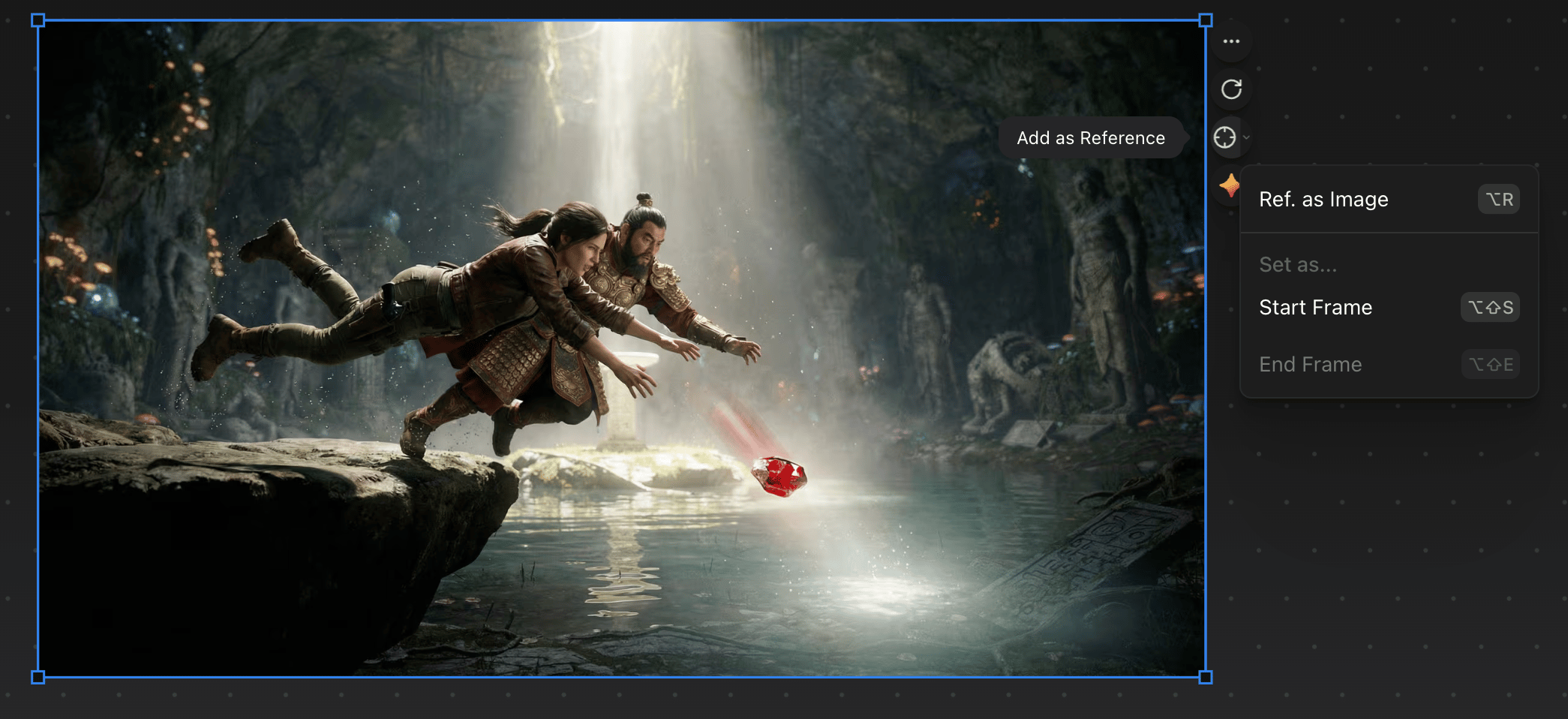
Reference saved assets by name
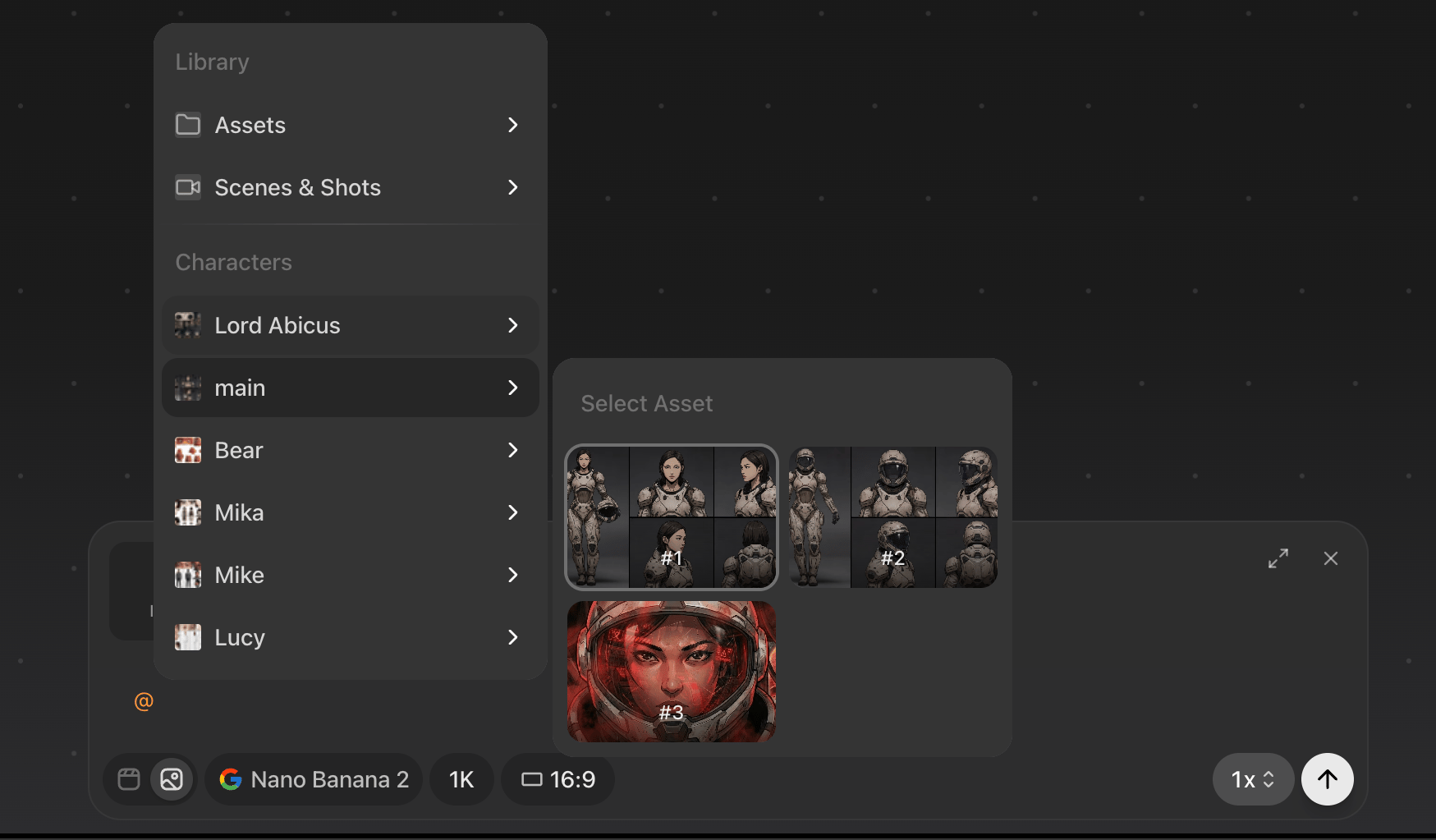
Preview’s memory system lets you reference many saved items by typing@ followed by the asset name. This works for:
- Characters
- Locations
- Props
- Saved assets
- Shots saved in scenes
Video References
Some video models accept video references. When selecting a video ref. Preview will only allow you to choose from video files on canvas, saved to library or uploaded from your computer.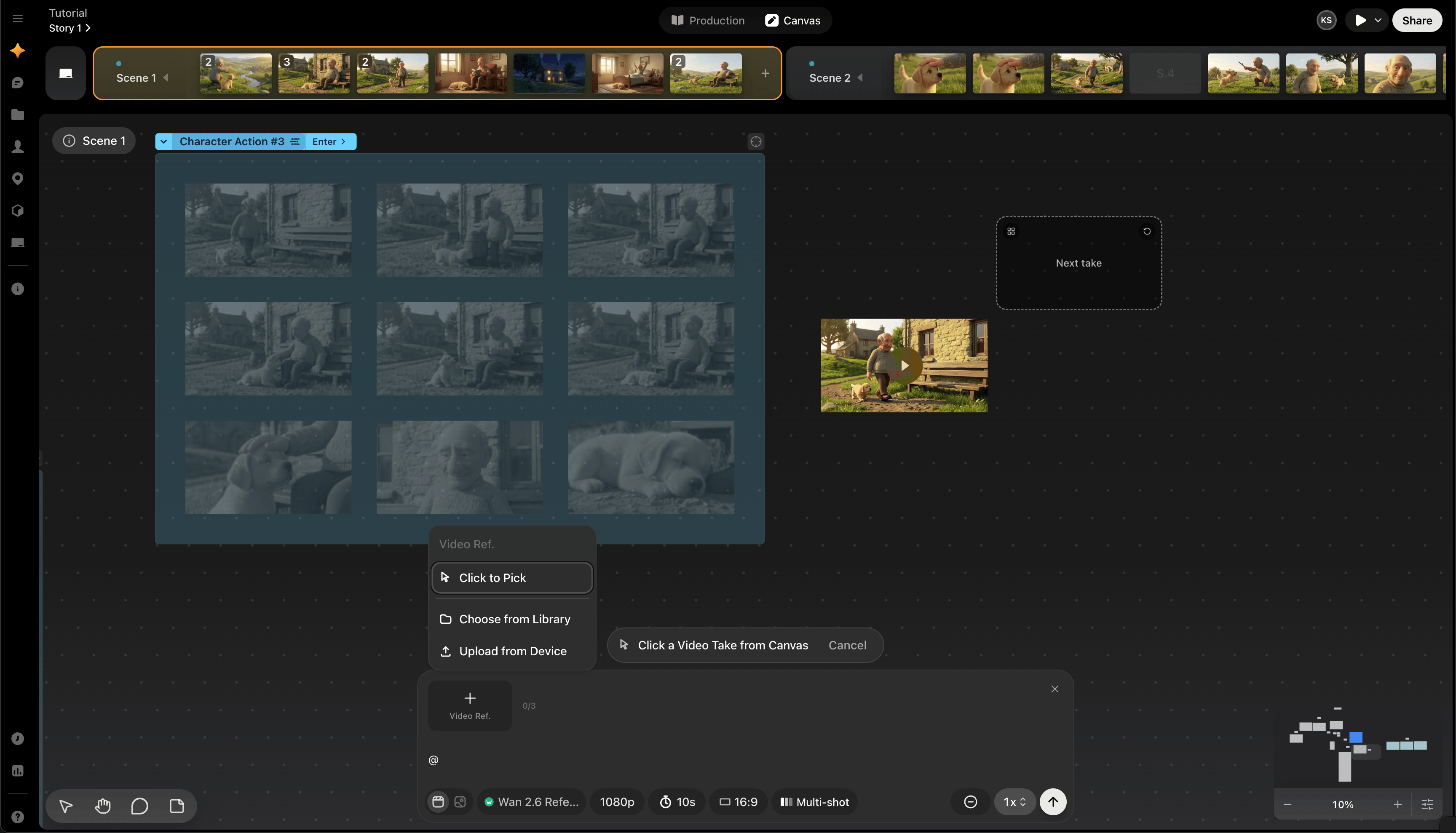
How to use the Reference pills
When you use @ to call a saved asset into prompt box you will notice that a reference pill is added into your prompt. Click on that pill to open the reference pill menu. In this menu you can see a thumbnail of the asset being used. You can also swap the asset for another saved Asset by clicking the name or Asset menu above the thumbnail.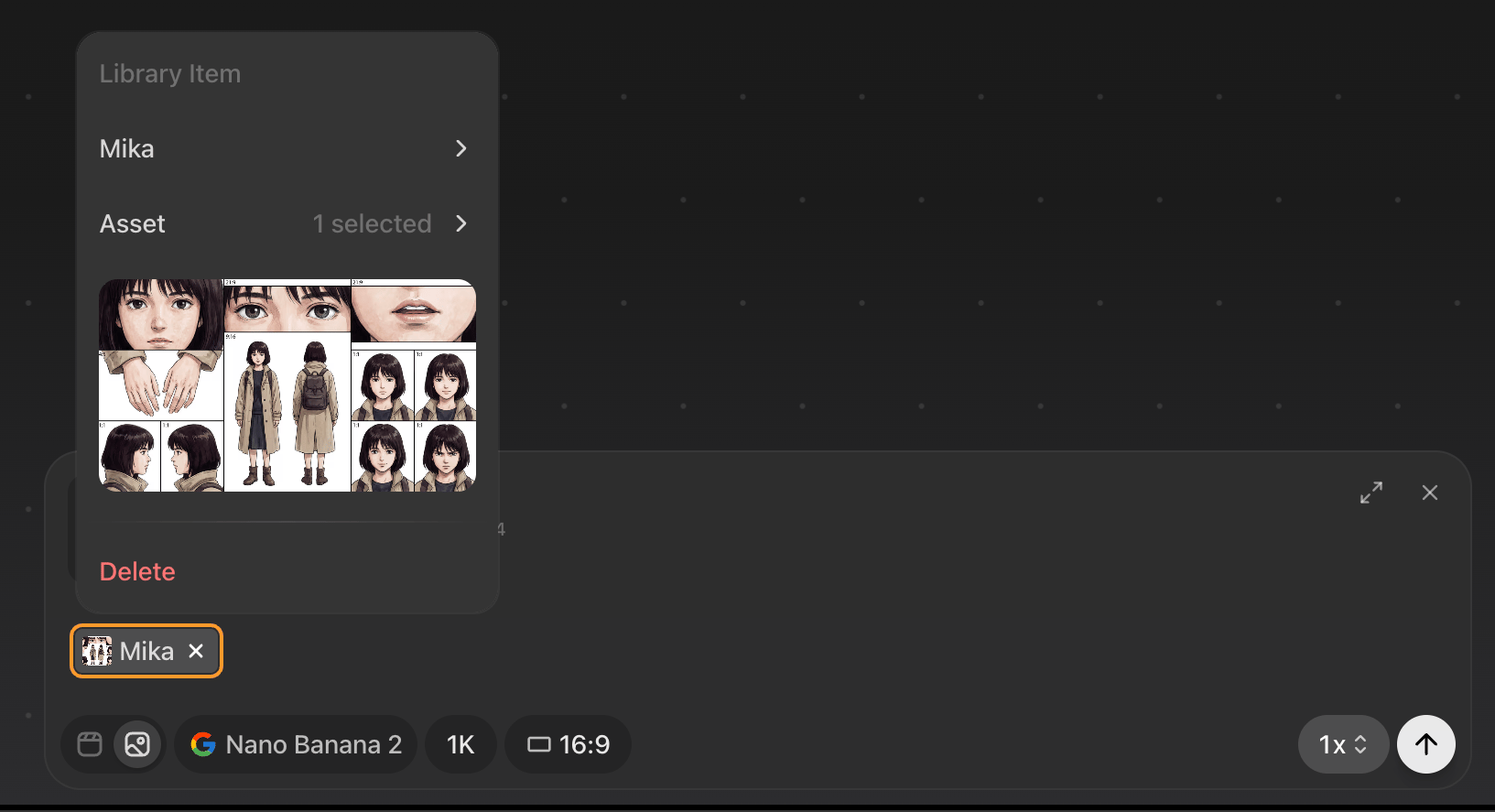
Continue to Prompting best practices for guidance on where to place reference pills and how to phrase prompts around them.