

Generate from the prompt box
Preview shows model capabilities and cost per generation in the model menu, cost to generate varies depending on resolution and number of outputs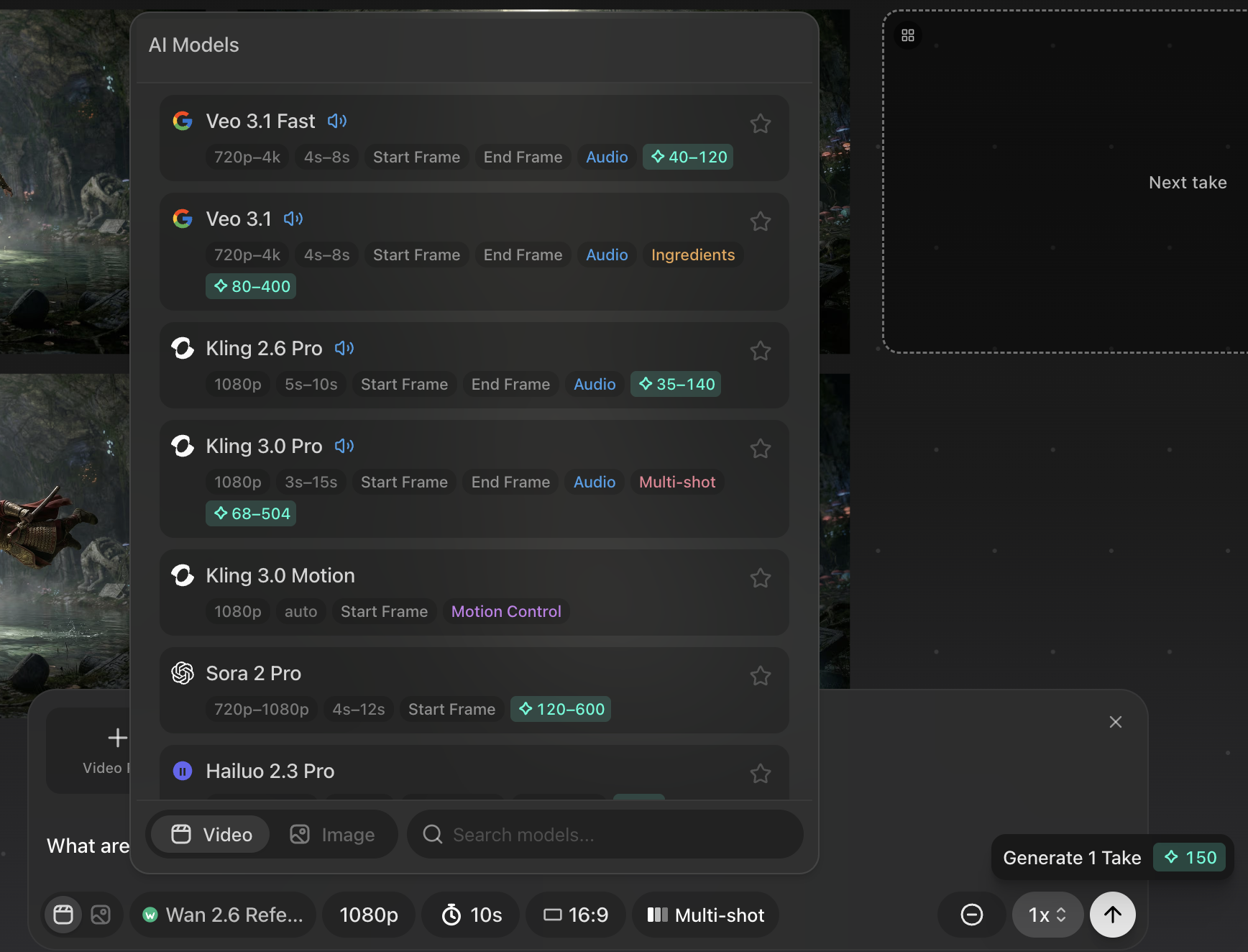
Set start and end frames
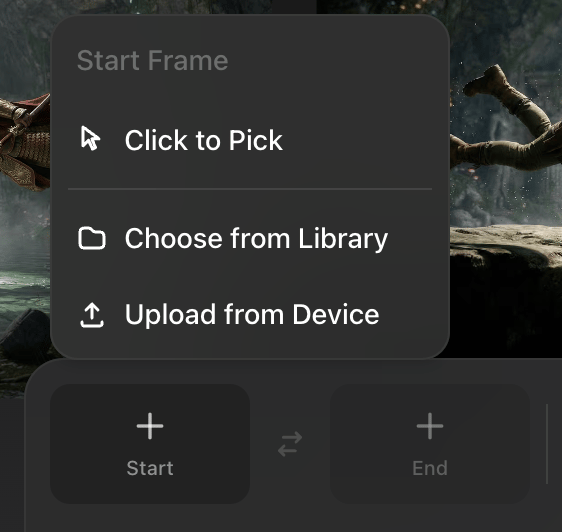
Use start and end frames when you need stronger continuity between shots, camera moves, or transitions. You can choose frames in four main ways:- Click to Pick directly from the canvas.
- Choose from the saved library.
- Upload from your device.
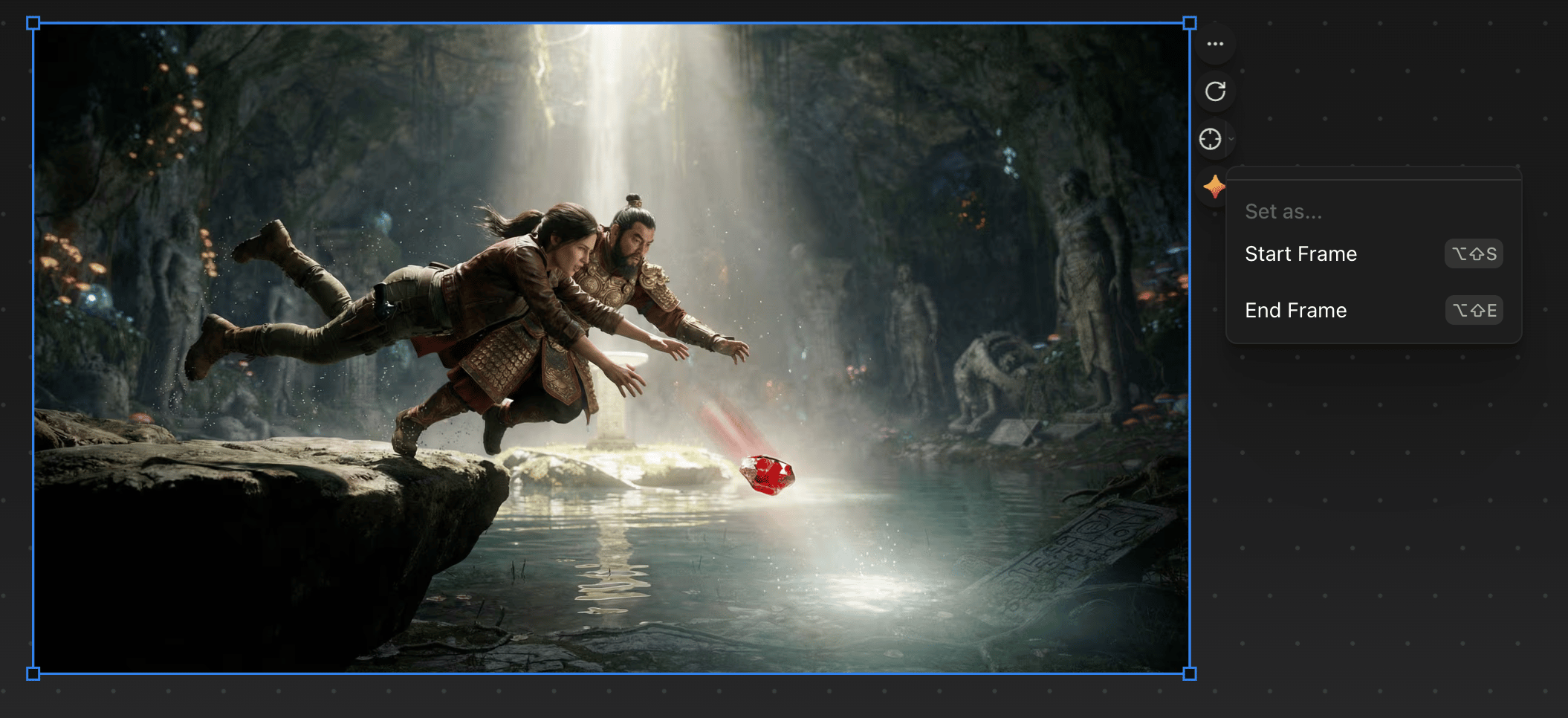
- Click the target icon on an image on canvas
Check output settings before generating
Before you run a generation, review:- Model
- Resolution
- Aspect ratio
- Duration
- Number of outputs
- Credit cost