When to use it
Use Gen Studio when you don’t want new generations landing on canvas automatically. Everything you create shows up here first, in one browsable feed. Review the batch, then choose which files are worth placing on canvas.Open it
Click the Gen Studio button beside the prompt box (Enter Gen Studio / Exit Gen Studio), or click Enter on a group or frame to open it scoped to that session.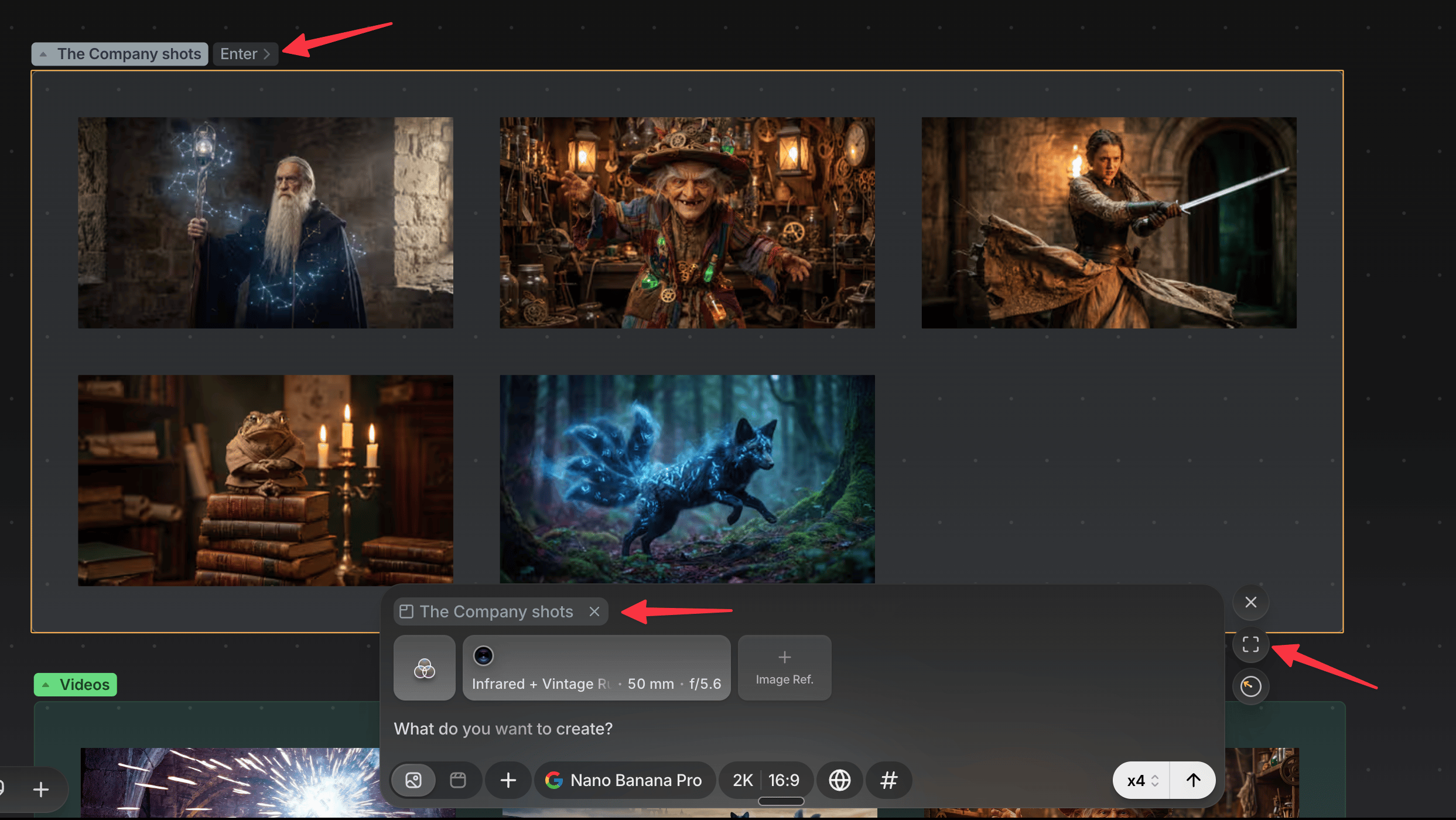
List or Grid
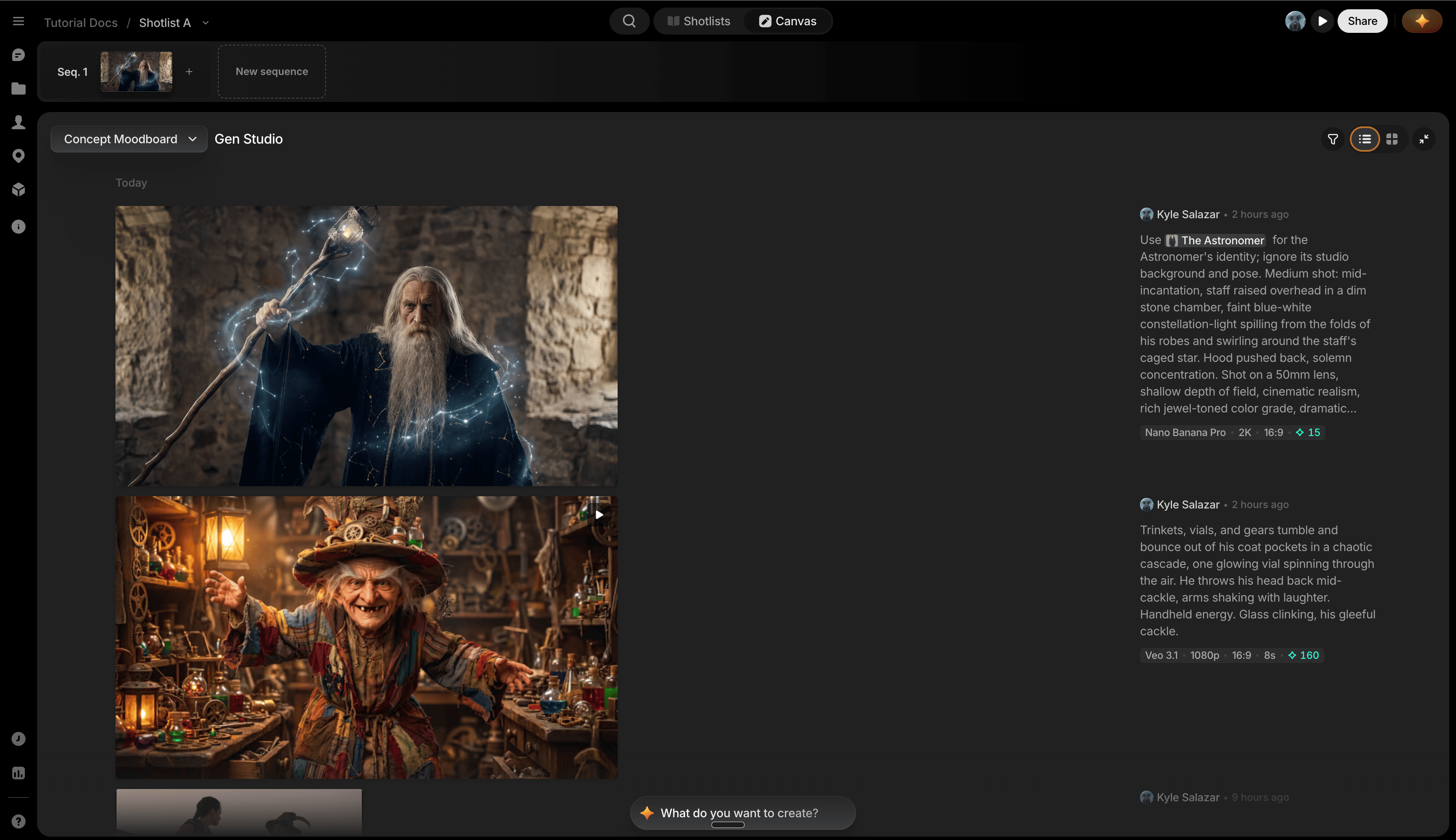
Switch between two layouts:- List (default): generations grouped by date, then by prompt. Each row shows creator, timestamp, prompt text, and the settings used (model, style, resolution, cost).
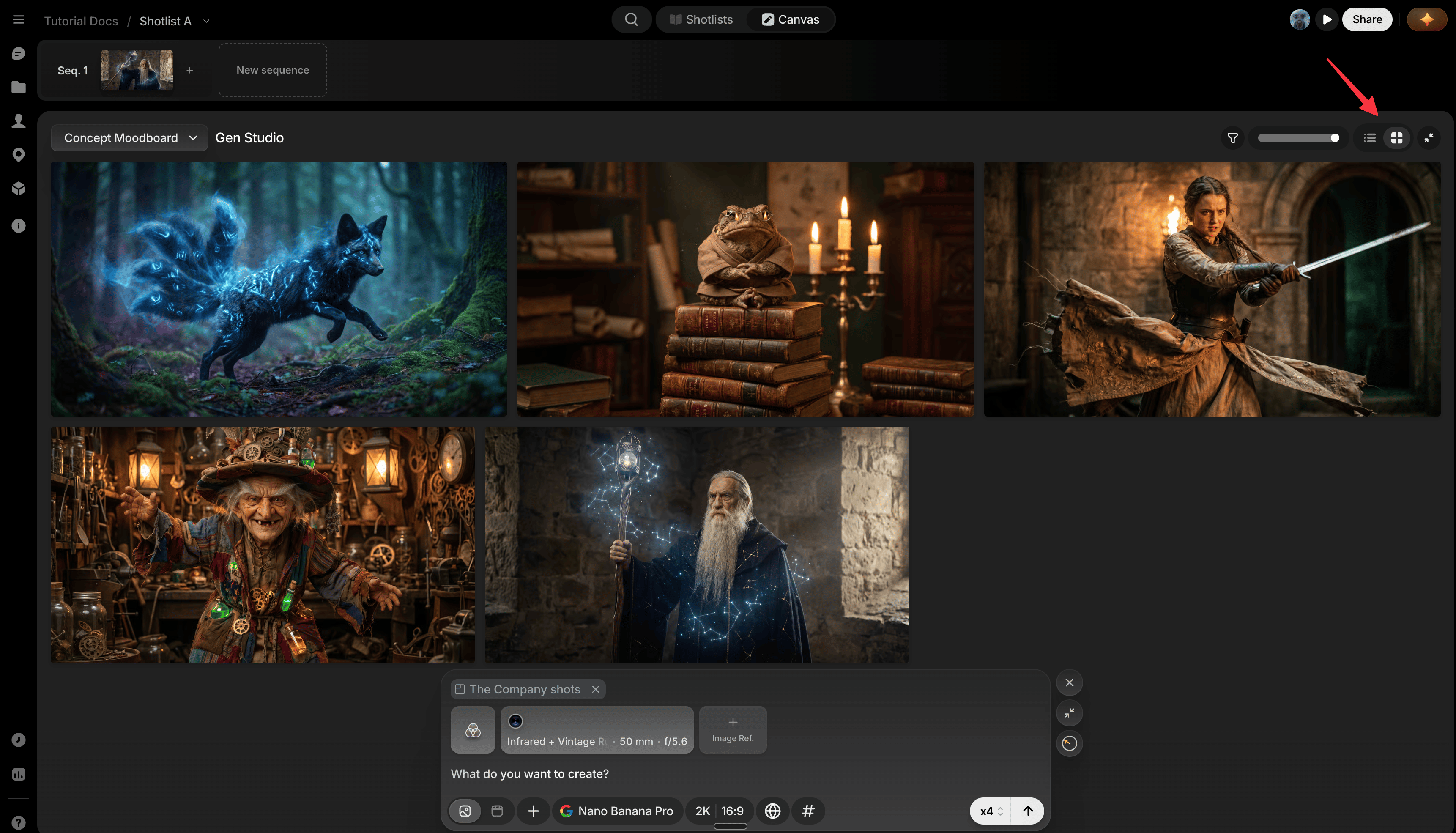
- Grid: a dense gallery with no metadata, and an adjustable tile size.
While something’s generating
Each tile shows its own status (Preparing, Waiting in Queue, Generating, Saving, Processing, or Canceled) with an elapsed-time counter. A failed generation shows why (content policy, rate limited, out of credits, and so on).Gen Studio has no retry, cancel, or delete action yet; do those from the canvas instead.
Act on a file
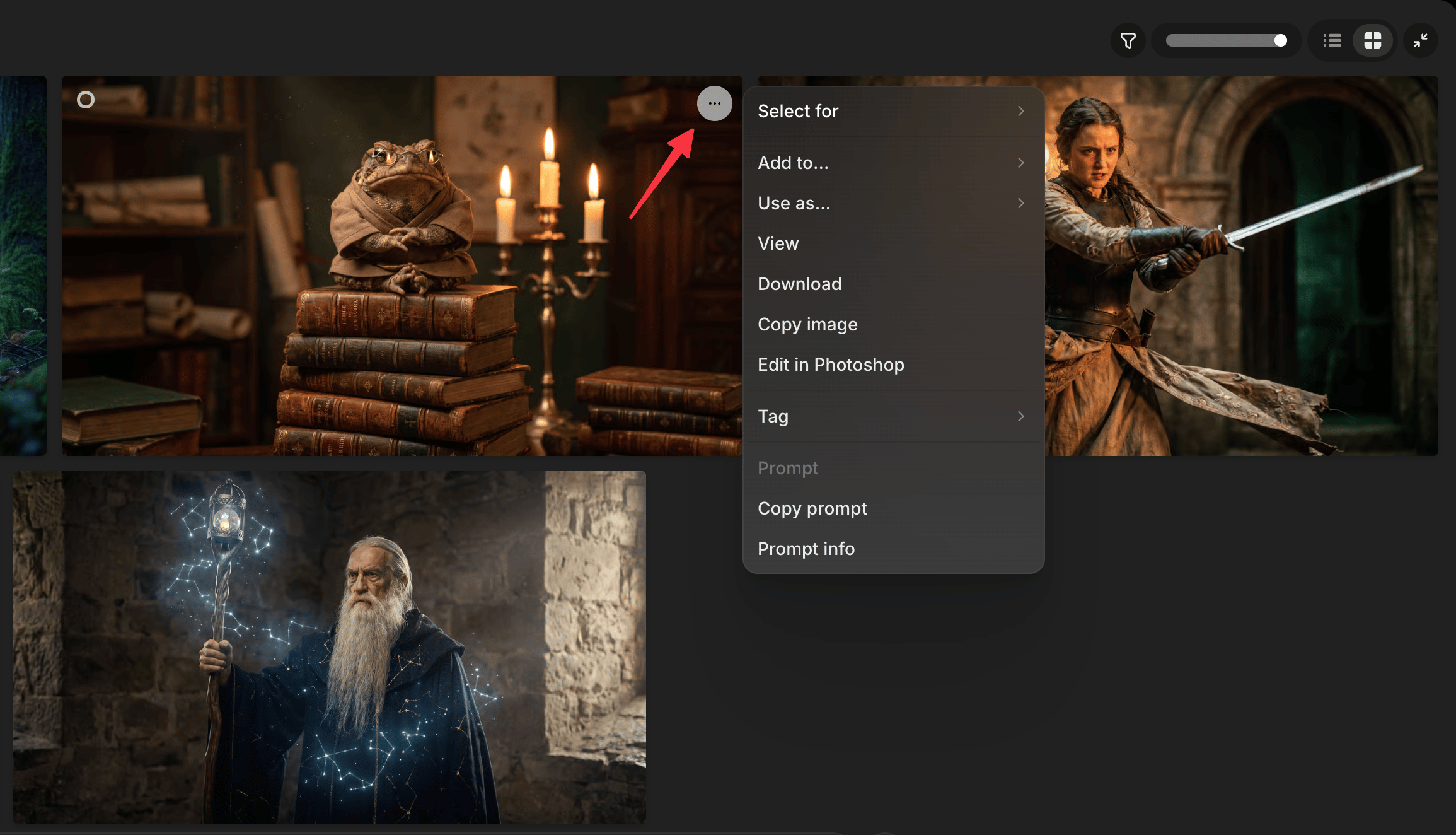
Once a result earns a second look, route it out of Gen Studio and into the rest of the project: assign it to a shot, save it to your library, or bring it onto canvas. Right-click a tile (or its ⋯ button) for:- Select for: assign it to a shot, if it belongs to the open sequence.
- Assign to group: move it onto canvas, into a group.
- Add to…: save it into a Character, Location, or Prop.
- Use as…: reference it, or set it as a Start or End Frame.
- View / Prompt info: both open the same File View.
- Download, Copy image (images), Edit in Photoshop (images).
- Tag: same colored dots as canvas tagging, top-left of the tile.
- Copy prompt.
- Remove from canvas: unlinks it from canvas without deleting it from Gen Studio.