> ## Documentation Index
> Fetch the complete documentation index at: https://docs.preview.io/llms.txt
> Use this file to discover all available pages before exploring further.
# Upscaling
> Upscale an image or video with Topaz or Magnific from the take toolbar.
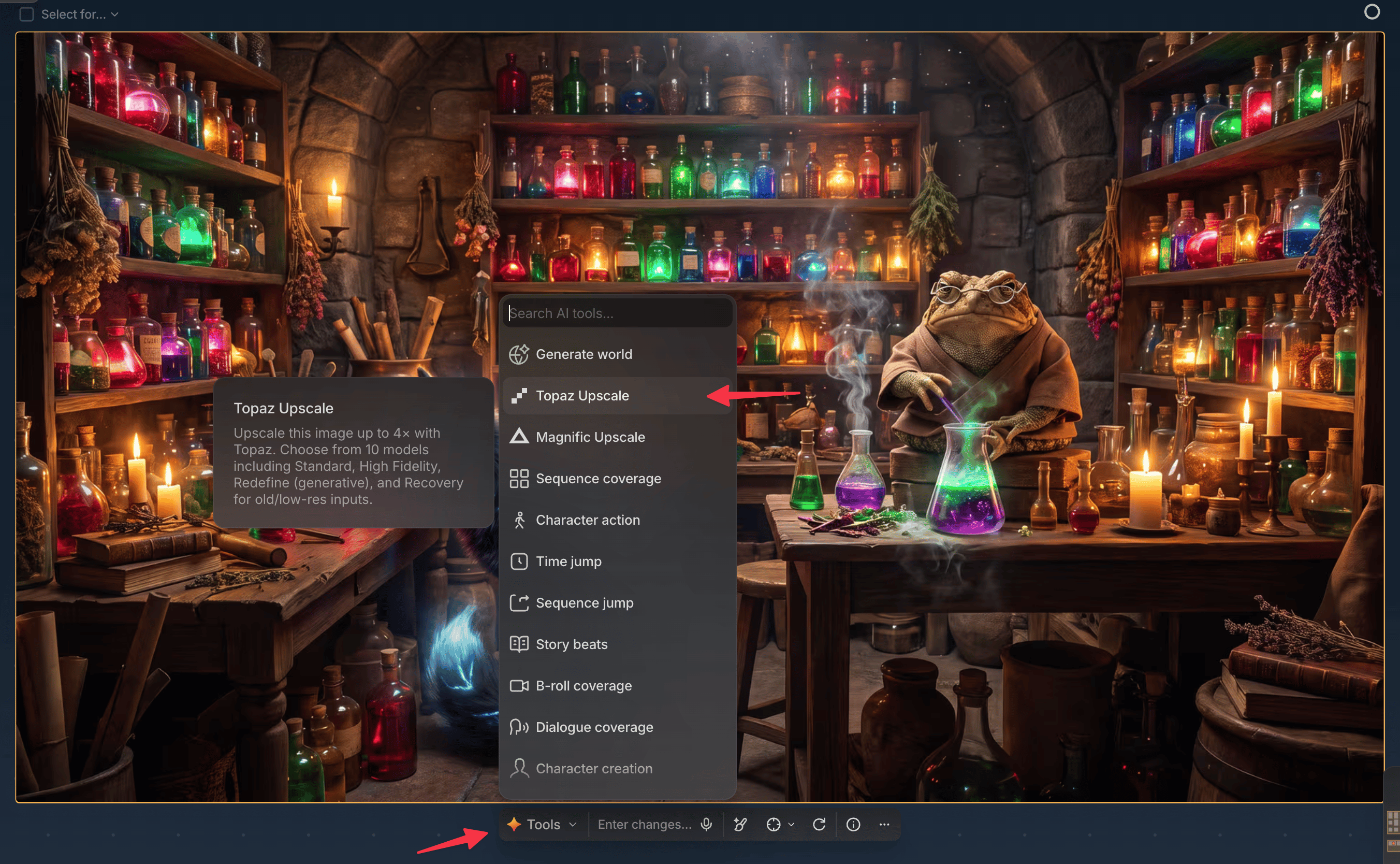
Upscaling lives in Quick Actions on any file's toolbar, with three providers, each with its own settings panel and live credit cost.
 ## Providers
* **Topaz Upscale**: the general-purpose choice for both images and video: 10 models (Standard V2, Redefine, Recovery, Recovery V2, Wonder, Text Refine, and others), 2× or 4× scale, optional face enhancement. Good default when you just need a cleaner, higher-resolution version of a file.
* **Topaz Astra**: Topaz's dedicated video-upscale model, built for the highest-fidelity video results Topaz offers. Reach for it when a video needs the best possible upscale quality.
* **Magnific Upscale**: image and video, with Creativity, HDR, Resemblance, and Fractality controls for a more stylized, reimagined result than Topaz. Good when you want the upscale to add detail and character, not just resolution. A separate **Magnific Skin Enhancer** action (Creative, Faithful, or Flexible mode) sits alongside it for portrait retouching.
## Upscale a file
Select a file on canvas and click **Tools** on its toolbar.
Pick Topaz Upscale, Topaz Astra, or Magnific Upscale from the menu.
Adjust model, scale, and provider-specific controls; the panel updates output dimensions and credit cost live.
Click **Upscale**. The result is added to canvas like any other generation.
## Topaz advanced settings
Beyond model, scale, and face enhancement, Topaz exposes Creativity, Texture, and Detail sliders (model-dependent), an optional prompt field, Sharpen, Denoise, Fix compression, Subject detection (All, Foreground, Background), and output format (JPEG or PNG).
## Providers
* **Topaz Upscale**: the general-purpose choice for both images and video: 10 models (Standard V2, Redefine, Recovery, Recovery V2, Wonder, Text Refine, and others), 2× or 4× scale, optional face enhancement. Good default when you just need a cleaner, higher-resolution version of a file.
* **Topaz Astra**: Topaz's dedicated video-upscale model, built for the highest-fidelity video results Topaz offers. Reach for it when a video needs the best possible upscale quality.
* **Magnific Upscale**: image and video, with Creativity, HDR, Resemblance, and Fractality controls for a more stylized, reimagined result than Topaz. Good when you want the upscale to add detail and character, not just resolution. A separate **Magnific Skin Enhancer** action (Creative, Faithful, or Flexible mode) sits alongside it for portrait retouching.
## Upscale a file
Select a file on canvas and click **Tools** on its toolbar.
Pick Topaz Upscale, Topaz Astra, or Magnific Upscale from the menu.
Adjust model, scale, and provider-specific controls; the panel updates output dimensions and credit cost live.
Click **Upscale**. The result is added to canvas like any other generation.
## Topaz advanced settings
Beyond model, scale, and face enhancement, Topaz exposes Creativity, Texture, and Detail sliders (model-dependent), an optional prompt field, Sharpen, Denoise, Fix compression, Subject detection (All, Foreground, Background), and output format (JPEG or PNG).