> ## Documentation Index
> Fetch the complete documentation index at: https://docs.preview.io/llms.txt
> Use this file to discover all available pages before exploring further.
# Shotlists
> Manage sequences, shots, assignments, and metadata in Shotlists: Grid, List, and Kanban modes, plus filters.
## What Shotlists is for
The same sequences and shots you build in the [Sequence Timeline](/preview/scene-timeline), in a dedicated management view. Select **Shotlists** near the top of the app to leave the canvas for the operational side of your project: assignments, status, metadata. Double-click any file to jump back to it on the canvas.
Shotlists has three synced modes (a change in one shows in the others), plus filters that apply across all.
A project can have multiple Shotlists, each with its own sequences. These modes show whichever is active; switch or manage them from [Sequence Timeline](/preview/scene-timeline).
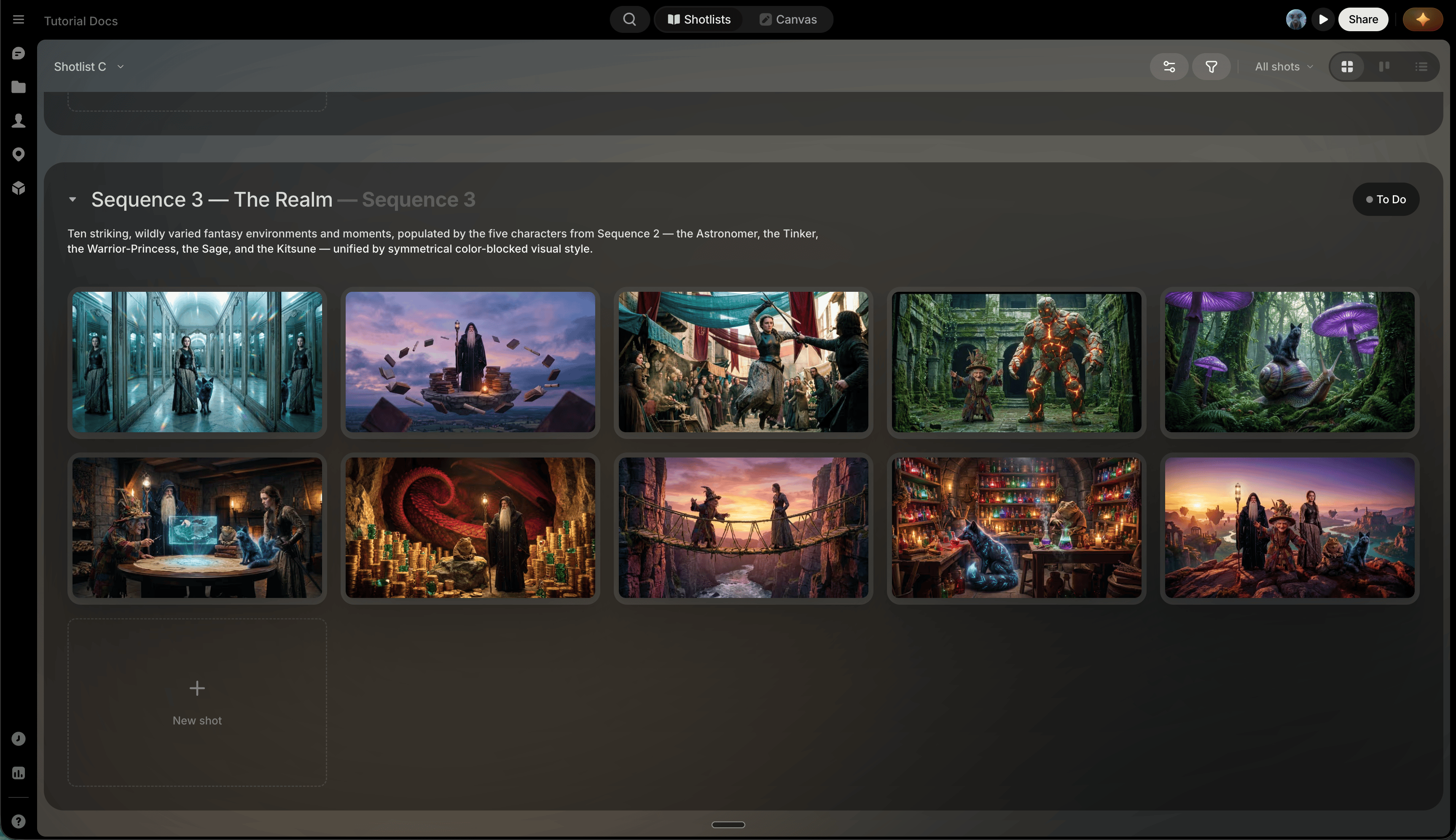
## Grid mode
View Options hide/show metadata and switch grid/row layouts.
Each shot's three-dot menu:
* **Open**: opens File view.
* **Duplicate**.
* **Multi Select**: opens a bottom toolbar for bulk actions (move, status, assignee, delete) across shots from any sequence.
* **Move to...**
Each shot tile also has:
* **A drag handle** on the tile's image: drag it to reorder the shot within its sequence.
* **File-cycling arrows** at the bottom of the tile: click them to step through the alternate files assigned to that shot.
 ## List mode
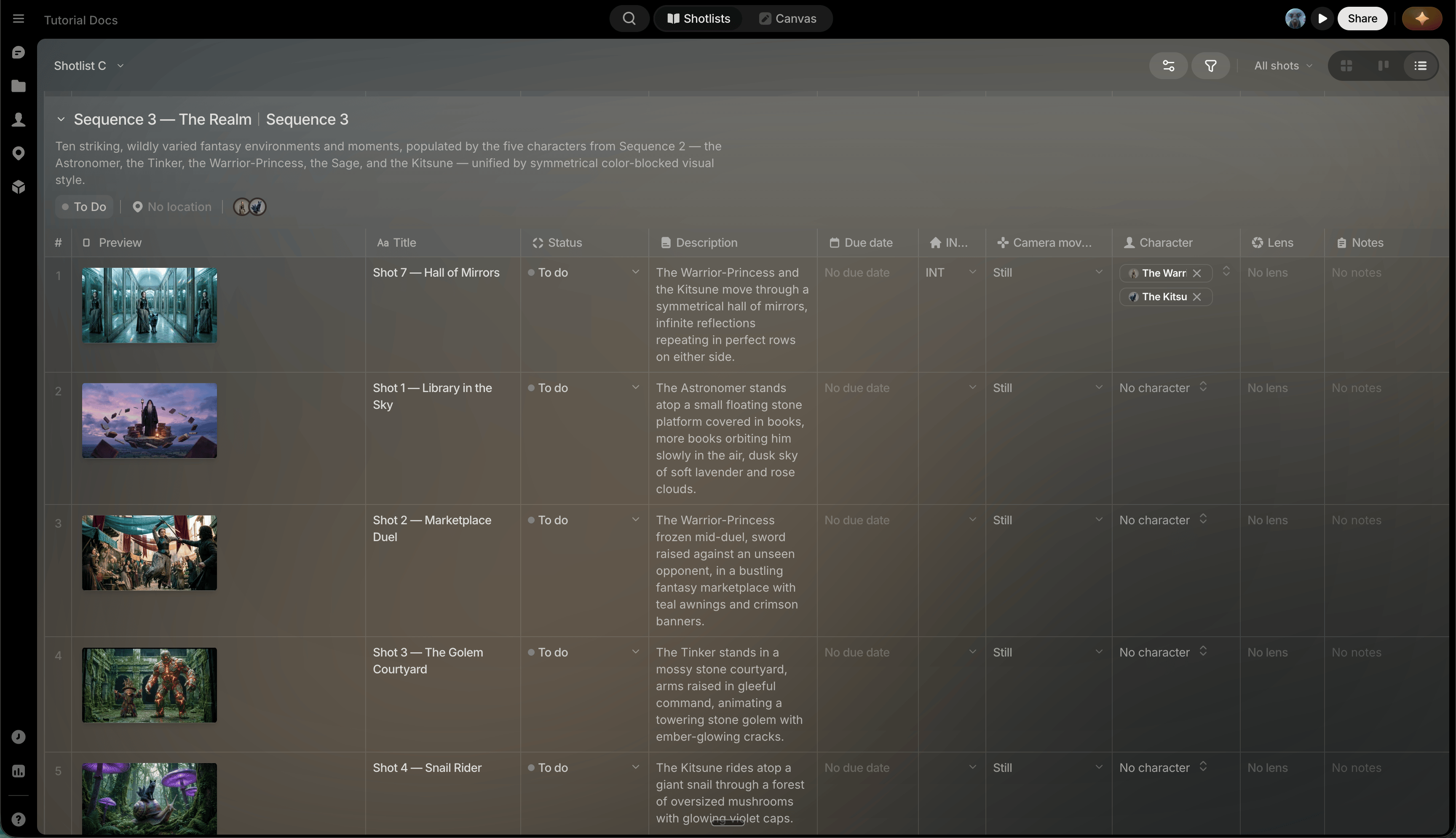
Structured-table view for detailed metadata edits.
* **Show/hide columns** from View Options.
* **Add a reference image** via the **+** in the references column, then call it with `@` in the canvas prompt box.
* **Reorder sequences** from the Reorder sequences icon on the sequence bar: opens a dialog to drag-reorder and rename sequences inline.
* **Add sequences or shots** from the **+** icons at the bottom-right or on a sequence column.
## List mode
Structured-table view for detailed metadata edits.
* **Show/hide columns** from View Options.
* **Add a reference image** via the **+** in the references column, then call it with `@` in the canvas prompt box.
* **Reorder sequences** from the Reorder sequences icon on the sequence bar: opens a dialog to drag-reorder and rename sequences inline.
* **Add sequences or shots** from the **+** icons at the bottom-right or on a sequence column.
 ## Kanban mode
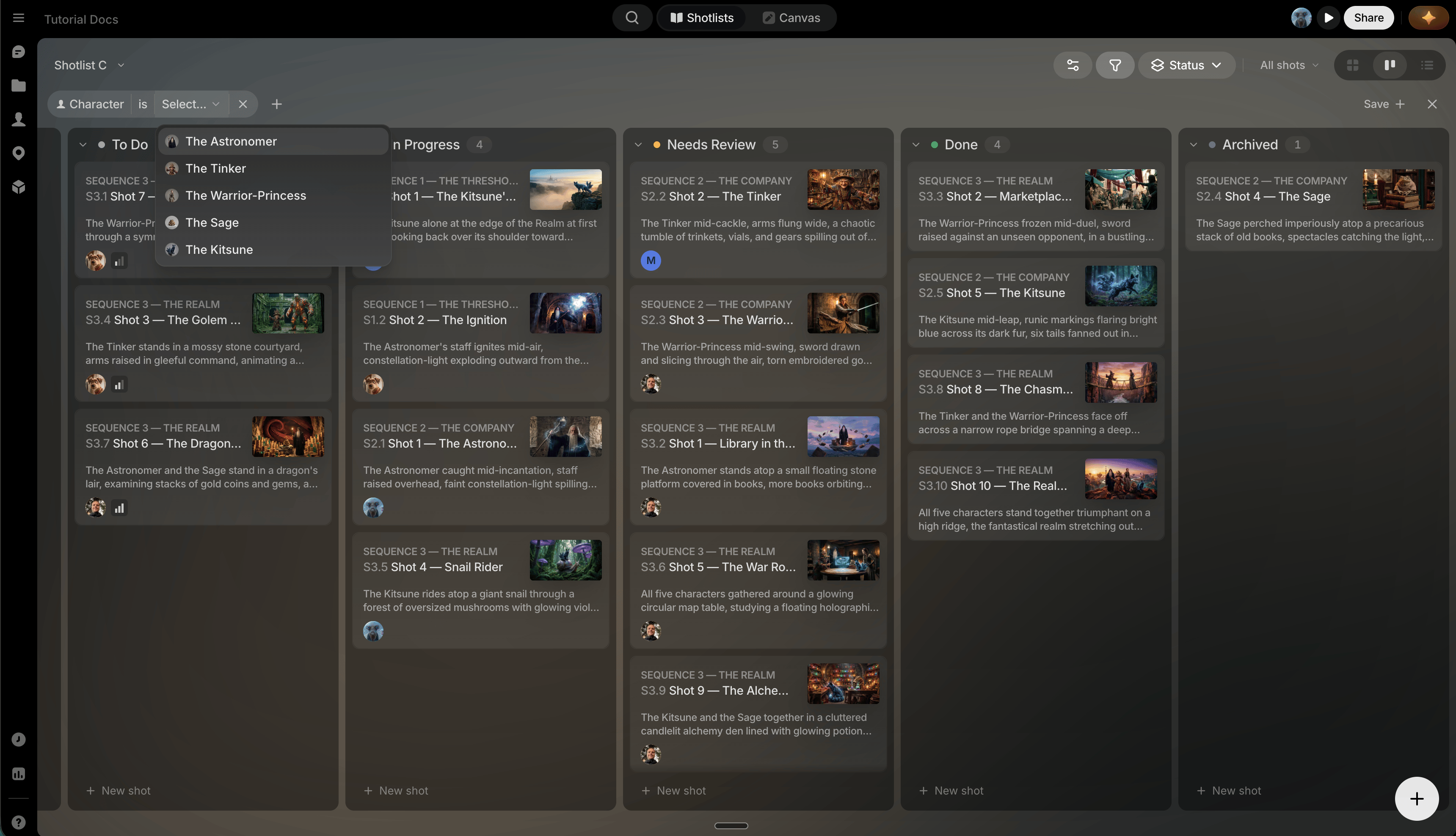
Track production progress at a glance: group by status to see what's queued, in progress, and complete, and drag a shot into the next column as it moves through your pipeline.
* **Drag shots between columns** to change their value for the field the category selector (upper right) groups by.
* **Collapse a column** via the caret in its header.
* **Switch categories**: group by assignee or location instead of status, from the category selector.
## Kanban mode
Track production progress at a glance: group by status to see what's queued, in progress, and complete, and drag a shot into the next column as it moves through your pipeline.
* **Drag shots between columns** to change their value for the field the category selector (upper right) groups by.
* **Collapse a column** via the caret in its header.
* **Switch categories**: group by assignee or location instead of status, from the category selector.
 ## Filters
Click the filter icon to narrow any Shotlists mode by sequence, status, assignee, location, or other project metadata.
Filter before bulk-editing metadata: it's easier to find and update the right shots in an already-narrowed view.
## Filters
Click the filter icon to narrow any Shotlists mode by sequence, status, assignee, location, or other project metadata.
Filter before bulk-editing metadata: it's easier to find and update the right shots in an already-narrowed view.