> ## Documentation Index
> Fetch the complete documentation index at: https://docs.preview.io/llms.txt
> Use this file to discover all available pages before exploring further.
# Project menu
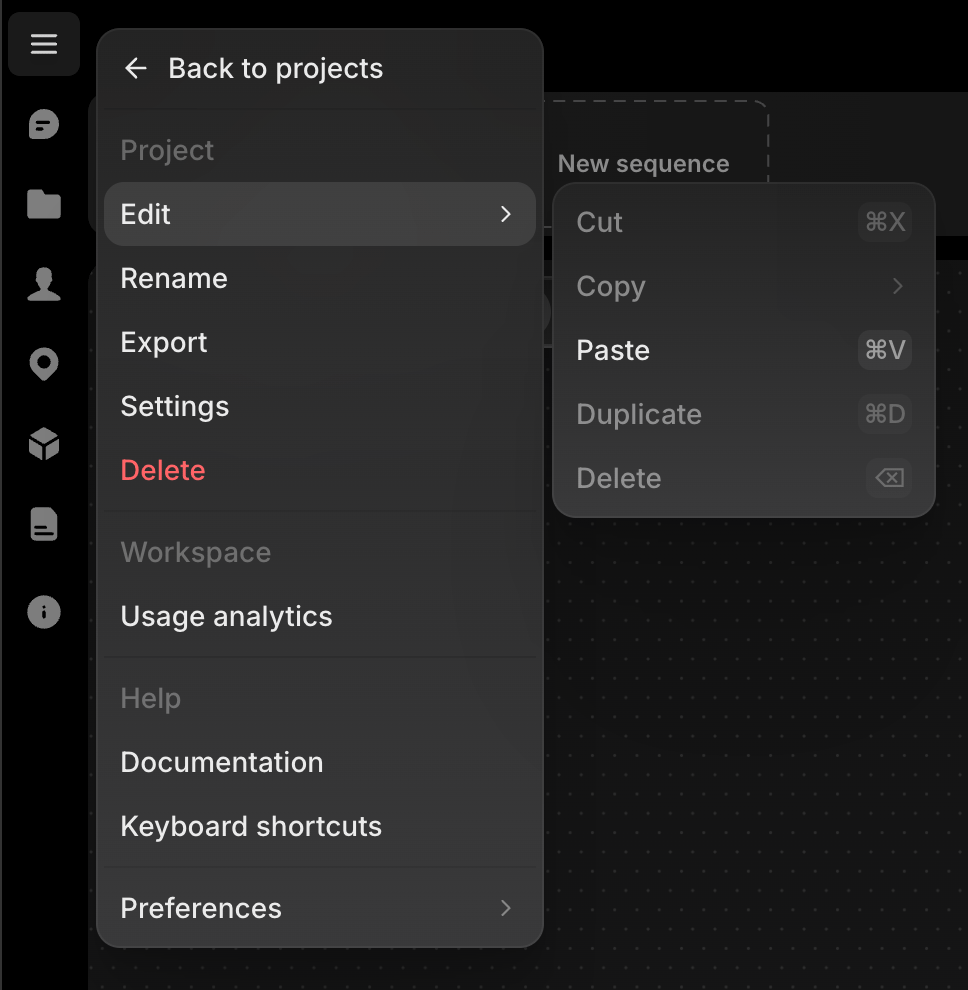
> Open the project menu from the hamburger icon at the top of the left sidebar.
## What's in the menu
* **Back to projects**: back to your projects list.
* **Project**: **Rename**, **Export** (covered below), **Settings**, and **Delete**.
* **Workspace**: **Usage analytics**, your organization's usage view. See [Project Analytics](/preview/project-analytics).
* **Help**: **Documentation** (these docs) and **Keyboard shortcuts**.
* **Preferences**: toggle the **Minimap**.
## Export
Export turns your shot list into a real editing timeline. It takes the take currently showing on each shot, across every sequence, and produces a ZIP: all the media, organized into a bin per sequence, plus an FCPXML timeline that Premiere Pro, DaVinci Resolve, and Final Cut Pro all understand.
Import the XML and your shot list rebuilds itself in the editor: one video track laid out in shot order, every image and video in place, and trims carried over. A video trimmed in Preview arrives trimmed on the timeline.
Alternates come in two flavors:
* **Selected takes**: just what's visible in the shot list. One clean track, your current cut.
* **Stacked tracks**: every other take saved inside each shot rides along too, stacked on higher video tracks and aligned to its shot's position. Those tracks are disabled by default, so playback stays your main cut with the alternates one click away.
The export dialog also has settings for audio stems, a burn-in review video, and frame rate.
Exports every sequence in the active Shotlist. For a single sequence, use **Export sequence** from that sequence's right-click menu. See [Sequence Timeline](/preview/scene-timeline).
## Delete project
Deletes the project and everything in it: every Shotlist, sequence, shot, and file. Requires typing the project's exact name to confirm.