> ## Documentation Index
> Fetch the complete documentation index at: https://docs.preview.io/llms.txt
> Use this file to discover all available pages before exploring further.
# Sequence Timeline
> Use the sequence timeline to create sequences, assign files to shots, and organize your project's visual flow.
Part of the canvas (see [Studio](/preview/canvas-overview)), the sequence timeline is your project's shot list, shown across the top: each sequence is a row of ordered shots. Assign a file to a shot and it appears in that row at once, turning canvas work into project structure.
 Click the small handle at the top of the canvas (**Collapse timeline** / **Expand timeline**) to close or reopen the timeline, or drag it to resize how much space the timeline takes.
## When to use it
Use the timeline for fast, in-canvas structuring: ordering shots and assigning files as you generate. Move to [Production](/preview/shotlists-overview) for metadata, status tracking, or bulk planning.
## Shotlists
A project can hold multiple Shotlists: each a complete, independent set of sequences and shots. The timeline always shows whichever one is active, and so does [Production](/preview/shotlists-overview); switching one switches the other.
* **Switch**: open the dropdown next to your project name, beside it on canvas or in any Production view. Same picker either way.
* **Create**: click **New** in the popover. Starts with one empty sequence and one empty shot, same as a brand-new project.
* **Duplicate**: from a Shotlist's **⋯** menu. Copies the sequences, shots, and their assigned takes. (Duplicating a single sequence, below, copies structure only.)
* **Rename** or **Delete**: same **⋯** menu. Delete is disabled once you're down to your last Shotlist.
Click the small handle at the top of the canvas (**Collapse timeline** / **Expand timeline**) to close or reopen the timeline, or drag it to resize how much space the timeline takes.
## When to use it
Use the timeline for fast, in-canvas structuring: ordering shots and assigning files as you generate. Move to [Production](/preview/shotlists-overview) for metadata, status tracking, or bulk planning.
## Shotlists
A project can hold multiple Shotlists: each a complete, independent set of sequences and shots. The timeline always shows whichever one is active, and so does [Production](/preview/shotlists-overview); switching one switches the other.
* **Switch**: open the dropdown next to your project name, beside it on canvas or in any Production view. Same picker either way.
* **Create**: click **New** in the popover. Starts with one empty sequence and one empty shot, same as a brand-new project.
* **Duplicate**: from a Shotlist's **⋯** menu. Copies the sequences, shots, and their assigned takes. (Duplicating a single sequence, below, copies structure only.)
* **Rename** or **Delete**: same **⋯** menu. Delete is disabled once you're down to your last Shotlist.
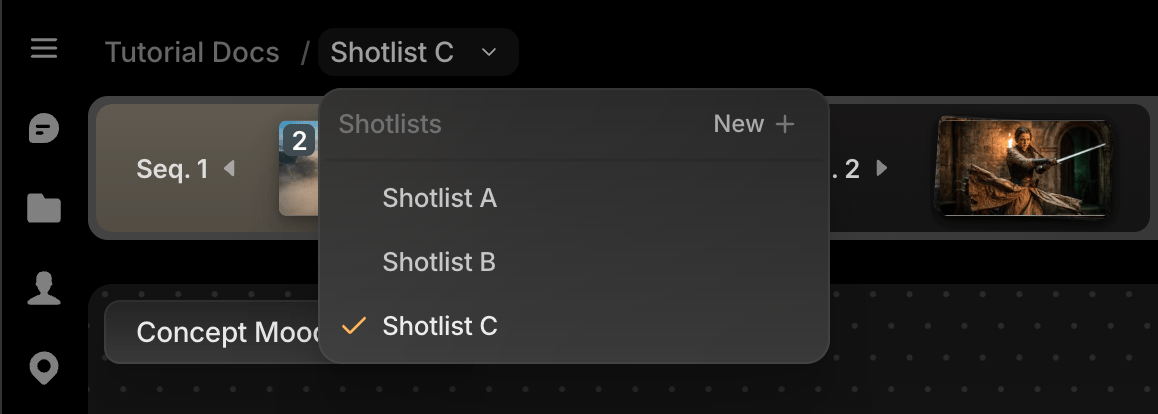 Every new project starts with one Shotlist. New ones are named sequentially: Shotlist A, Shotlist B, and so on.
## Add a sequence or shot
* **Add a sequence**: click **New sequence** at the end of the timeline; this also creates its empty first shot.
* **Add a shot to an existing sequence**: click the **+** at the end of that sequence's bar, then choose **Add shot** or **Add multiple shots**.
## Assign files to shots from the canvas
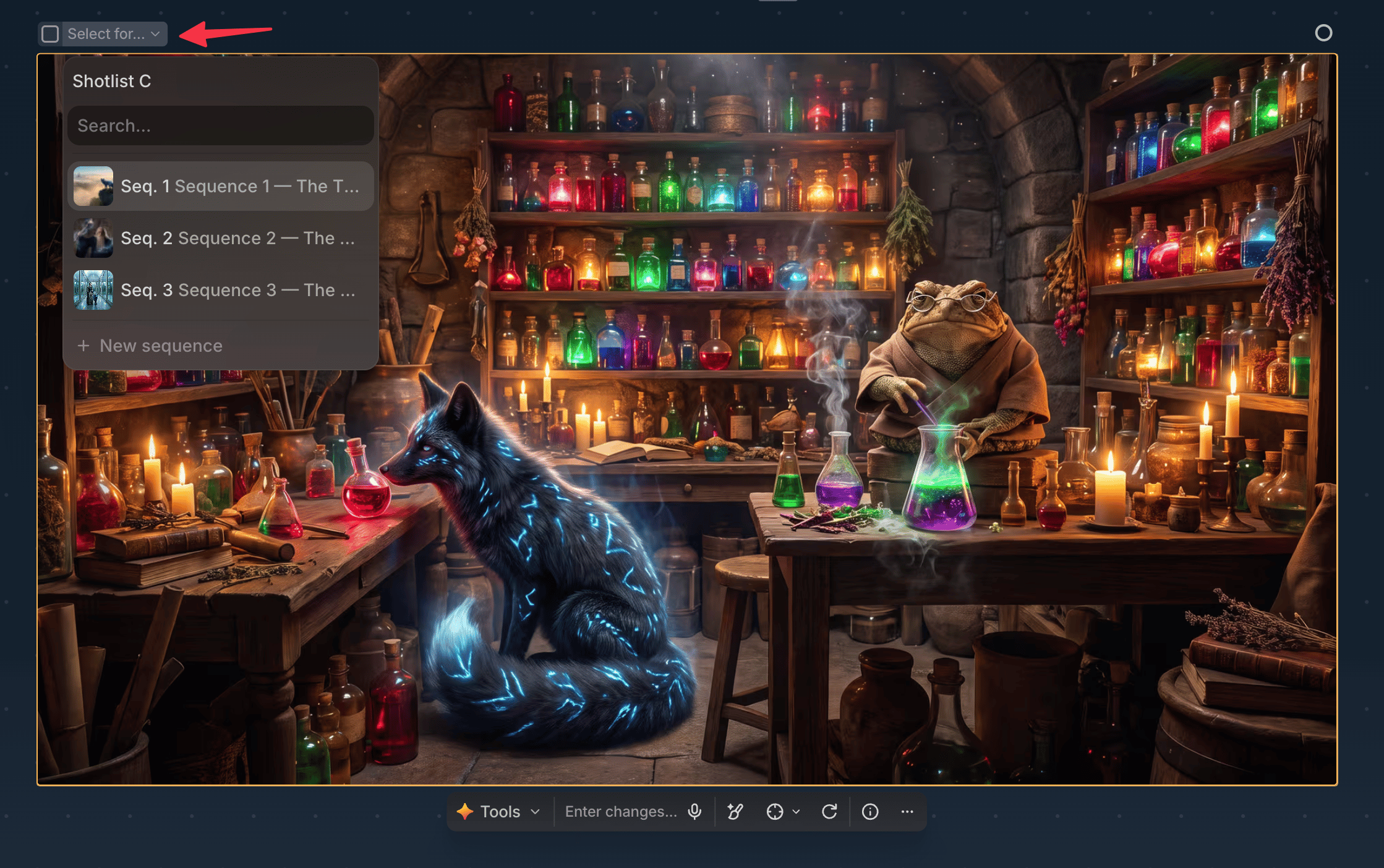
The timeline needn't be open to assign a file: every canvas file has a **Select for** control floating above it.
* Check the box on the file to assign or unassign it from the active shot.
* Open **Select for** to search any project sequence; choose one to see its shots, then a shot to assign the file to.
* Choose **New sequence** from that dropdown to create one with an empty first shot, then pick that shot to assign the file.
* After choosing a sequence, choose **New shot** at the bottom of its shot list to create and assign one.
This is the fastest way to build out shots without scrolling the timeline for the right sequence.
Every new project starts with one Shotlist. New ones are named sequentially: Shotlist A, Shotlist B, and so on.
## Add a sequence or shot
* **Add a sequence**: click **New sequence** at the end of the timeline; this also creates its empty first shot.
* **Add a shot to an existing sequence**: click the **+** at the end of that sequence's bar, then choose **Add shot** or **Add multiple shots**.
## Assign files to shots from the canvas
The timeline needn't be open to assign a file: every canvas file has a **Select for** control floating above it.
* Check the box on the file to assign or unassign it from the active shot.
* Open **Select for** to search any project sequence; choose one to see its shots, then a shot to assign the file to.
* Choose **New sequence** from that dropdown to create one with an empty first shot, then pick that shot to assign the file.
* After choosing a sequence, choose **New shot** at the bottom of its shot list to create and assign one.
This is the fastest way to build out shots without scrolling the timeline for the right sequence.
 ## Reorder and remove
* **Reorder shots**: drag a shot to a new position in its sequence.
* **Remove a take from its shot**: right-click the shot (or, with multiple takes, one in its hover popover) and choose **Remove Take**. The take stays on canvas, just unassigned.
* **Delete a shot**: right-click it and choose **Delete Shot**. Takes become unassigned, not deleted; only the shot leaves the sequence.
* **Open Shot Info**: hover the shot, click the **Info** icon in its takes popover, for a sidebar with Details, References, and Takes tabs.
* **Find on canvas**: right-click a shot (or a take in its popover) and choose **Find on canvas** to jump straight to that file, switching canvas or sequence if needed. Double-clicking a take in the popover does the same.
Shots can't be dragged between sequences. Instead, assign a shot's takes to a shot in the new sequence via Select for.
## Manage a sequence
Right-click a sequence title to open sequence actions:
* Expand / Collapse
* Duplicate
* Export sequence
* View details (also where you rename the sequence)
* Copy link
* Collapse all / Expand all
* Delete sequence
### Duplicate
Keeps the shot count but not existing media. The new sequence starts with empty shots.
### Export
The same export as the [Project menu](/preview/settings-menu)'s **Export shotlist**, scoped to just this sequence: a ZIP with this sequence's media and an FCPXML timeline for Final Cut Pro or DaVinci Resolve, with the same Alternates, Audio, Burn-in review video, and Frame rate settings.
## Next: manage this structure in more detail
Continue to [Production](/preview/shotlists-overview) for metadata, status tracking, and bulk planning across the same sequences and shots.
## Reorder and remove
* **Reorder shots**: drag a shot to a new position in its sequence.
* **Remove a take from its shot**: right-click the shot (or, with multiple takes, one in its hover popover) and choose **Remove Take**. The take stays on canvas, just unassigned.
* **Delete a shot**: right-click it and choose **Delete Shot**. Takes become unassigned, not deleted; only the shot leaves the sequence.
* **Open Shot Info**: hover the shot, click the **Info** icon in its takes popover, for a sidebar with Details, References, and Takes tabs.
* **Find on canvas**: right-click a shot (or a take in its popover) and choose **Find on canvas** to jump straight to that file, switching canvas or sequence if needed. Double-clicking a take in the popover does the same.
Shots can't be dragged between sequences. Instead, assign a shot's takes to a shot in the new sequence via Select for.
## Manage a sequence
Right-click a sequence title to open sequence actions:
* Expand / Collapse
* Duplicate
* Export sequence
* View details (also where you rename the sequence)
* Copy link
* Collapse all / Expand all
* Delete sequence
### Duplicate
Keeps the shot count but not existing media. The new sequence starts with empty shots.
### Export
The same export as the [Project menu](/preview/settings-menu)'s **Export shotlist**, scoped to just this sequence: a ZIP with this sequence's media and an FCPXML timeline for Final Cut Pro or DaVinci Resolve, with the same Alternates, Audio, Burn-in review video, and Frame rate settings.
## Next: manage this structure in more detail
Continue to [Production](/preview/shotlists-overview) for metadata, status tracking, and bulk planning across the same sequences and shots.