> ## Documentation Index
> Fetch the complete documentation index at: https://docs.preview.io/llms.txt
> Use this file to discover all available pages before exploring further.
# Inpaint
> Edit part of an image on canvas with Inpaint, using the inpaint model of your choice.
## Enter Inpaint mode
Inpaint lets you change one part of an image, like a prop or an expression, without regenerating the whole shot and losing everything else that's already working.
Select an image on canvas to reveal its toolbar, then click **Inpaint**.
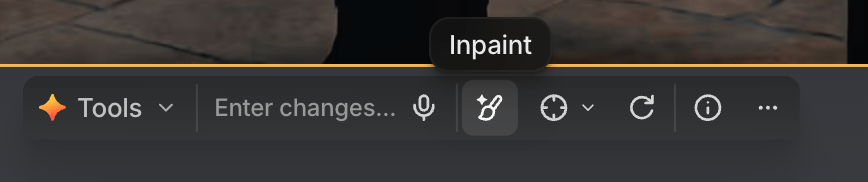 This opens a limited prompt box and the inpainting toolbar:
* **Brush**: start painting on the image.
* **Eraser**: erase painted marks.
* **Slider**: adjust brush size.
* **Undo / redo**: step back or forward through brush and eraser actions.
* **Trash**: clear all painting.
* **X** button, or **Esc** key: exit Inpaint mode.
The prompt box in Inpaint mode has its own model picker: **Seedream v5 Pro** (the default), **Nano Banana Pro**, or **GPT Image 2**. Your choice sticks for future inpaints.
## Inpaint an image
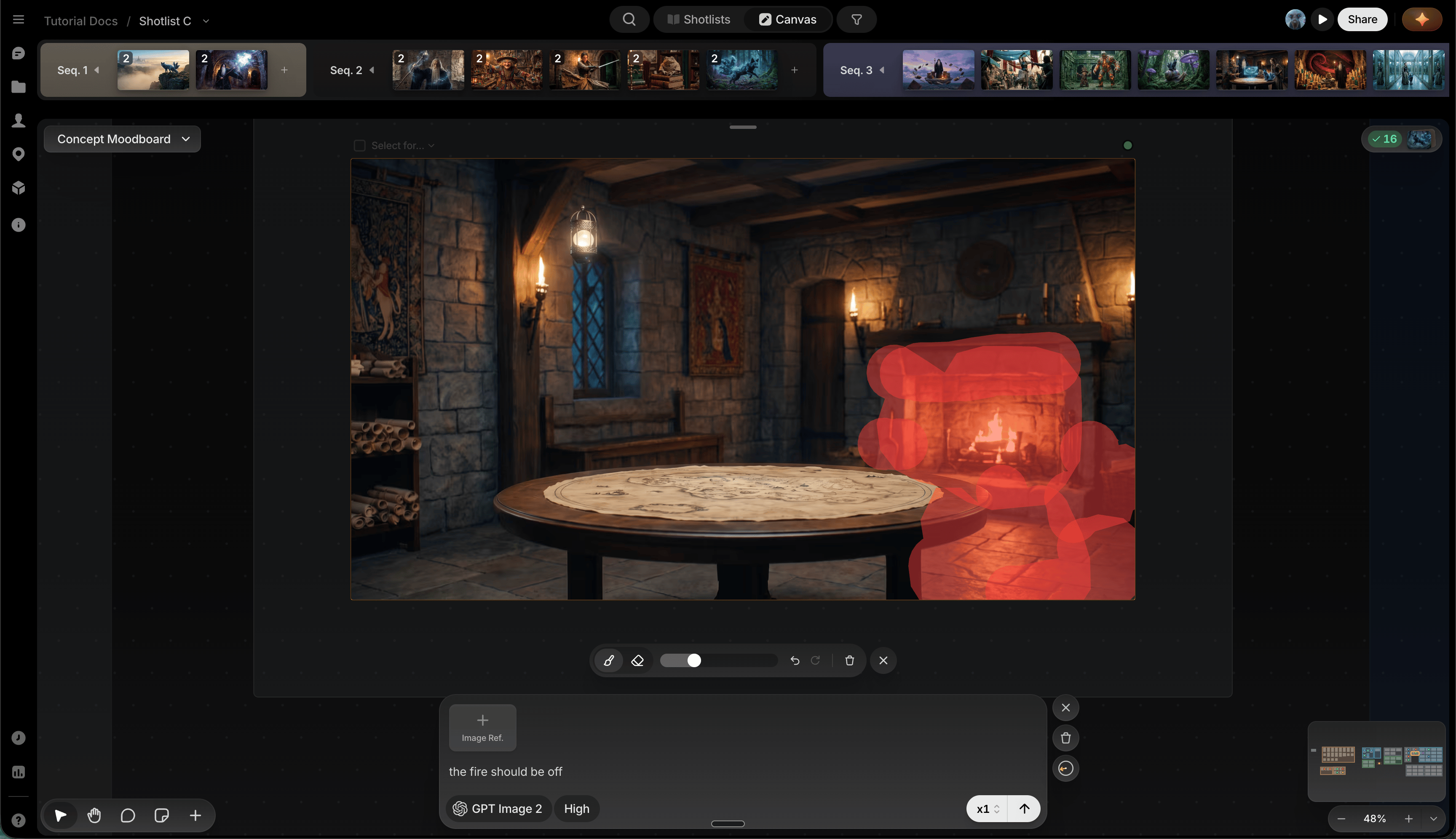
Mask the part to change.
Type it in the prompt box, e.g., "Change the dog to a cat."
Press generate to fill the masked area.
This opens a limited prompt box and the inpainting toolbar:
* **Brush**: start painting on the image.
* **Eraser**: erase painted marks.
* **Slider**: adjust brush size.
* **Undo / redo**: step back or forward through brush and eraser actions.
* **Trash**: clear all painting.
* **X** button, or **Esc** key: exit Inpaint mode.
The prompt box in Inpaint mode has its own model picker: **Seedream v5 Pro** (the default), **Nano Banana Pro**, or **GPT Image 2**. Your choice sticks for future inpaints.
## Inpaint an image
Mask the part to change.
Type it in the prompt box, e.g., "Change the dog to a cat."
Press generate to fill the masked area.
 ## Inpaint with image references
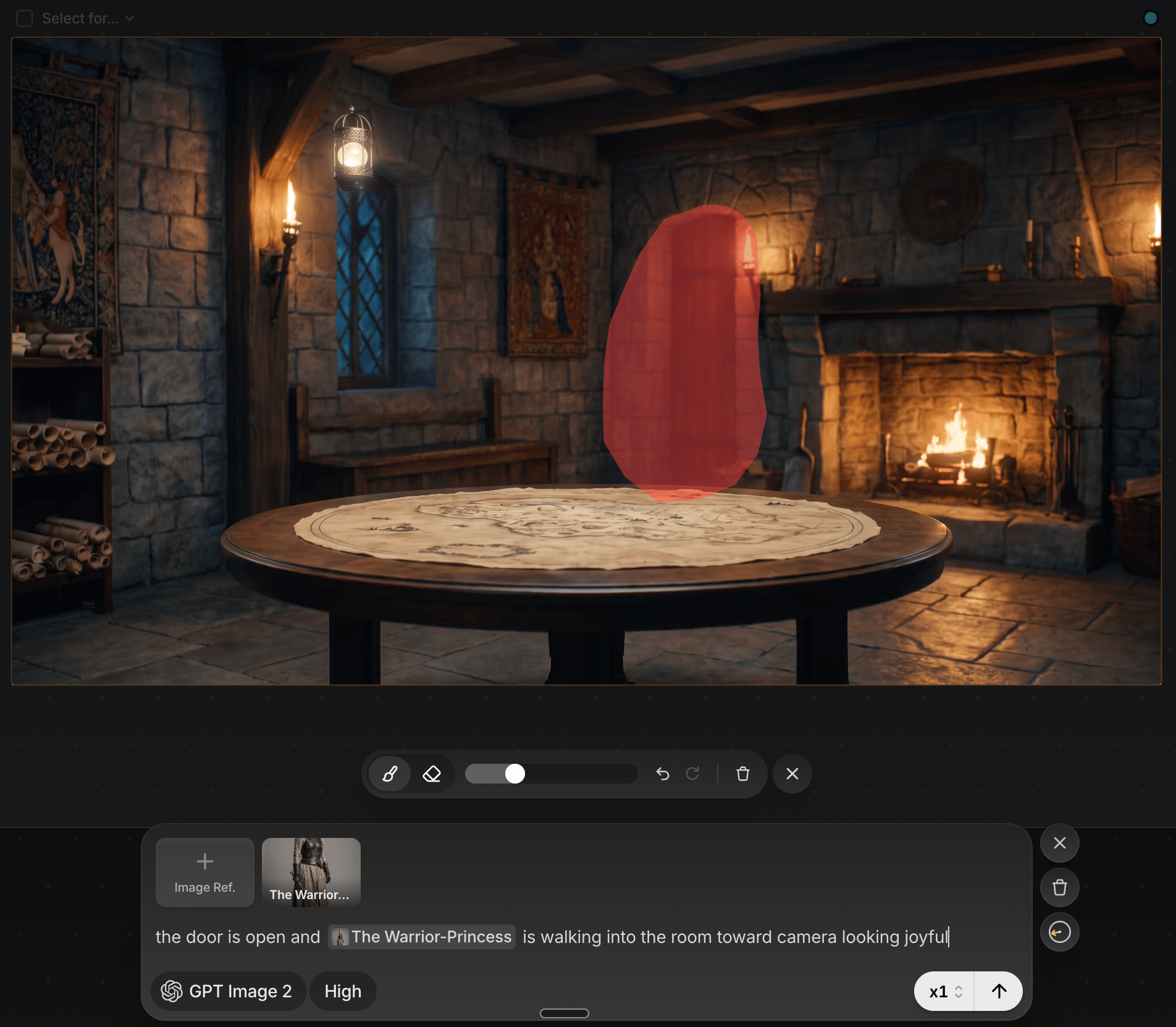
For a more specific change, add a reference image before painting, e.g., to change sunglasses' style: add the new sunglasses as a reference, paint out the existing ones, then describe the change. References work the same as normal generation, including **Click to pick** straight from the canvas; your mask and prompt survive the round trip.
## Inpaint with image references
For a more specific change, add a reference image before painting, e.g., to change sunglasses' style: add the new sunglasses as a reference, paint out the existing ones, then describe the change. References work the same as normal generation, including **Click to pick** straight from the canvas; your mask and prompt survive the round trip.
 Changing sequences or leaving the canvas view exits Inpaint mode.