> ## Documentation Index
> Fetch the complete documentation index at: https://docs.preview.io/llms.txt
> Use this file to discover all available pages before exploring further.
# Studio
> Understand the infinite canvas, prompt box, sequence timeline, and live collaboration tools in Preview.
The studio is where you generate images and videos and arrange them in a project. This page covers the canvas itself; the [Sequence Timeline](/preview/scene-timeline) and [Production](/preview/shotlists-overview) pages cover the rest.
## Key parts of the canvas
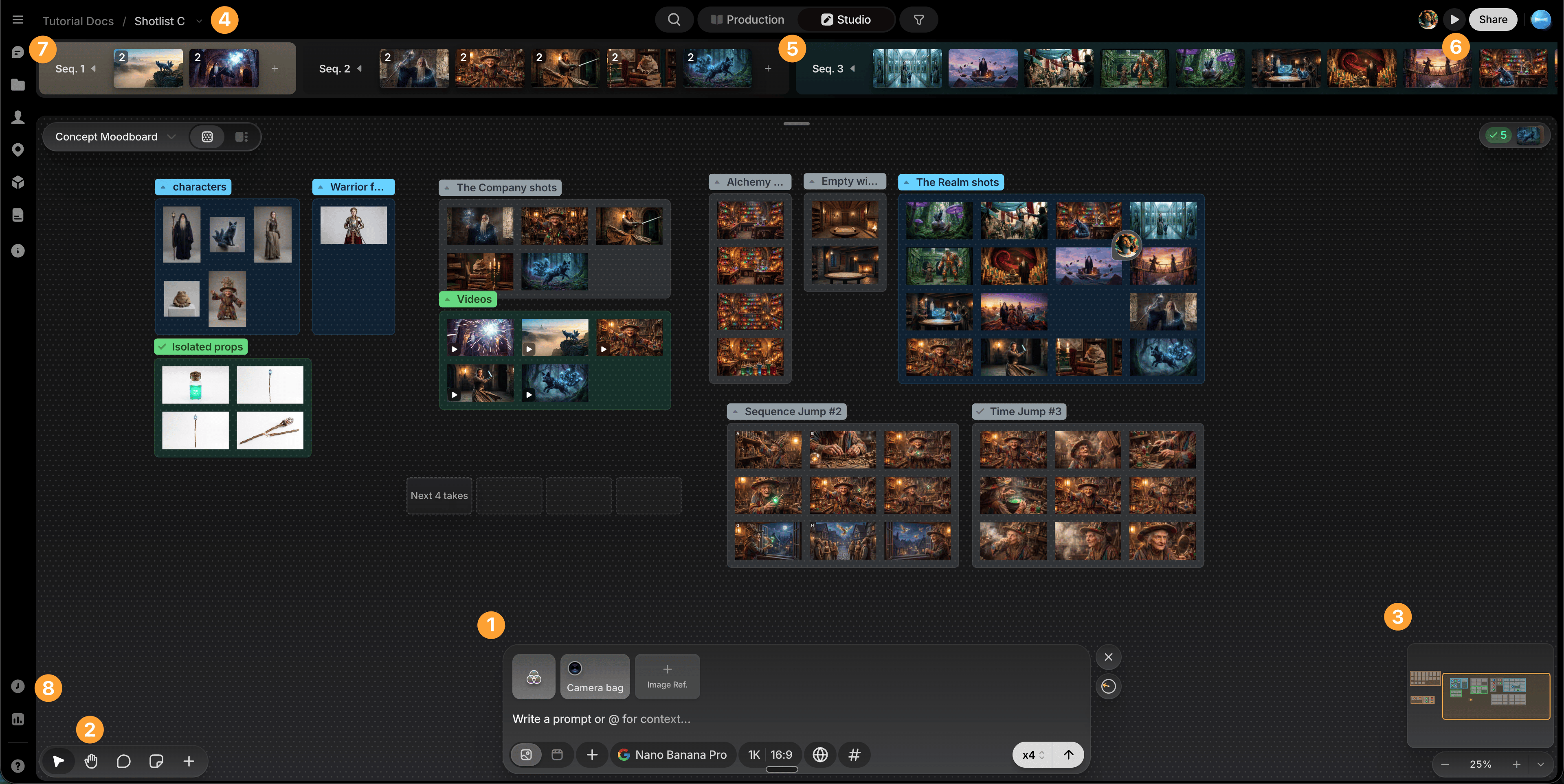 The numbers below match the callouts in the image above.
On the canvas itself:
1. **[Prompt box](/preview/prompt-box-overview)** (bottom center): generate images and videos.
2. **Toolbar** (bottom left): Cursor, Hand, Comments, and Sticky note tools, plus an **Add** button for bringing in files (**Upload** or **Uploads**).
3. **Minimap** (lower right): zoom and jump around large canvases. Shows colored markers for groups, sticky notes, and tagged files; drag its edges to resize it.
4. **[Sequence Timeline](/preview/scene-timeline)** (top): assigns files to shots.
5. **[Production / Studio](/preview/shotlists-overview)** switcher: Studio is this canvas; Production is the management side, with three synced views (Shotlist, Storyboard, Kanban).
6. **Play** (upper right, beside Share): preview a sequence's shots back to back in a mini playback window.
In the app sidebar, not the canvas surface itself:
7. **[Comments sidebar](/preview/comments)**: review discussion history.
8. **[History sidebar](/preview/history)**: every image ever created or imported, filterable by user. Drag one back onto canvas to restore it.
## Files view
Every canvas has two faces: **Canvas view**, the surface itself, and **Files view**, a feed of everything ever generated or uploaded on that canvas. Switch between them from the tabs on the canvas pill in the top-left.
The numbers below match the callouts in the image above.
On the canvas itself:
1. **[Prompt box](/preview/prompt-box-overview)** (bottom center): generate images and videos.
2. **Toolbar** (bottom left): Cursor, Hand, Comments, and Sticky note tools, plus an **Add** button for bringing in files (**Upload** or **Uploads**).
3. **Minimap** (lower right): zoom and jump around large canvases. Shows colored markers for groups, sticky notes, and tagged files; drag its edges to resize it.
4. **[Sequence Timeline](/preview/scene-timeline)** (top): assigns files to shots.
5. **[Production / Studio](/preview/shotlists-overview)** switcher: Studio is this canvas; Production is the management side, with three synced views (Shotlist, Storyboard, Kanban).
6. **Play** (upper right, beside Share): preview a sequence's shots back to back in a mini playback window.
In the app sidebar, not the canvas surface itself:
7. **[Comments sidebar](/preview/comments)**: review discussion history.
8. **[History sidebar](/preview/history)**: every image ever created or imported, filterable by user. Drag one back onto canvas to restore it.
## Files view
Every canvas has two faces: **Canvas view**, the surface itself, and **Files view**, a feed of everything ever generated or uploaded on that canvas. Switch between them from the tabs on the canvas pill in the top-left.
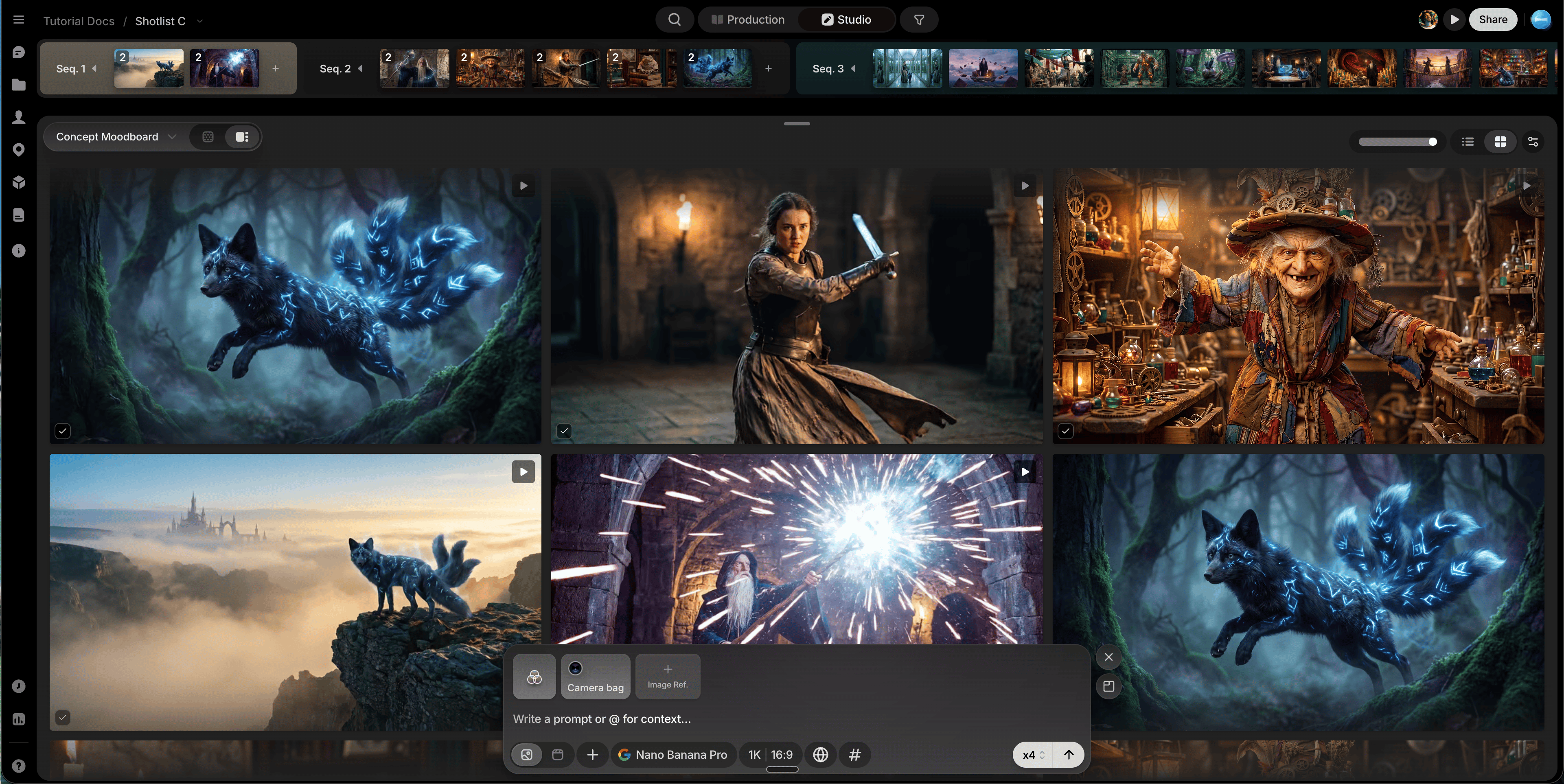 Use it to review a canvas's entire output in one place. Each canvas has its own Files view; for a project-wide history across every canvas, use the [History](/preview/history) sidebar instead.
* **Place on canvas, or don't**: hover a file for its **Place on canvas** / **Remove from canvas** toggle, bottom-left of the tile. Placing shows a toast with a **Go to** button that jumps straight to the file on canvas; removing takes it off the canvas but keeps it here.
* **Place on canvas by default**: one switch in **Generation settings** (top right), on out of the box. Turn it off and Files view becomes a staging area: generate freely, review the batch here, and place only what's worth keeping.
* **List or Grid**: filter by **Type**, **Model**, **Resolution**, or **Aspect ratio** from the **Filters** control.
* **List layout**: generations grouped by date, then prompt, with creator, timestamp, prompt text, and settings on each row.
* **Grid layout**: a dense gallery with an adjustable tile size.
## Sticky notes
Sticky notes are for quick, freeform notes that live on the canvas itself, separate from the threaded, timestamped discussion in Comments. Click the sticky note tool in the bottom-left toolbar (or press **N**) and click the canvas to place one; it enters edit mode and grows as you type.
* **Format text**: select text inside a note for Bold, Italic, Strikethrough, and Bullet list.
* **Change color or size**: open a note's **⋯** menu for six colors and three text sizes.
* **Resize**: drag a corner handle; notes scale proportionally.
Use the same **⋯** menu to duplicate a note, copy its link, or delete it.
## Comments
Click the comment tool in the bottom-left toolbar to leave feedback directly on the canvas. See [Comments](/preview/comments) for the full drawing and threading toolkit.
## Work with collaborators
Follow another person's cursor by clicking their avatar (upper right), or send a short live canvas message by typing `/`.
## Multiple canvases
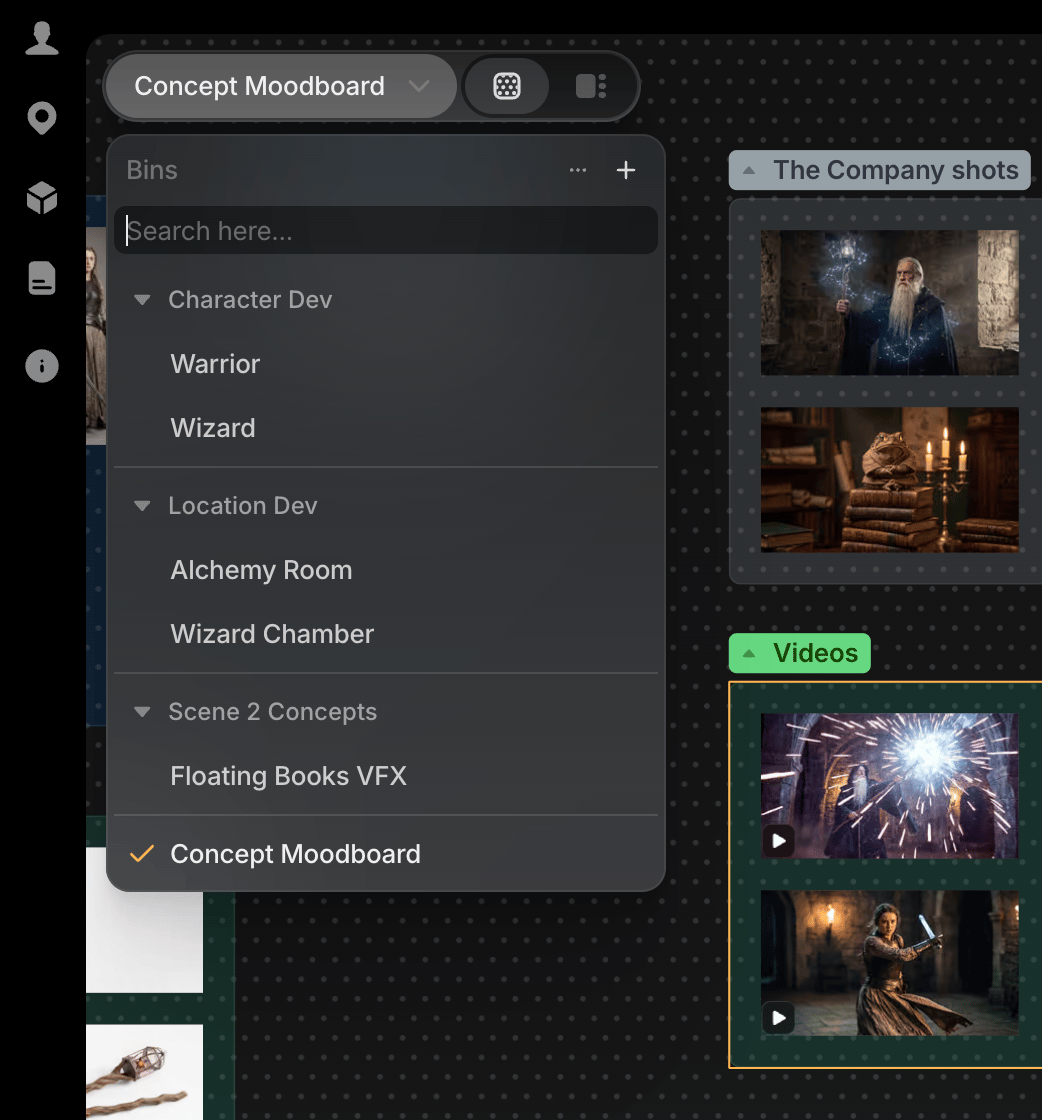
As a project grows, one canvas often isn't enough for every storyline, department, or exploration pass. Canvases belong to the project, not one sequence, so create or switch between them from the top-left canvas picker (its header reads **Bins**: the bins hold your canvases). Once you have several, group them into named sections:
* **Create a section**: from the picker's **⋯** menu, choose **Create section**, or right-click a canvas and choose **Move to → Create section** to start one with that canvas included.
* **Move a canvas into a section**: right-click it (or open its **⋯** menu) and choose **Move to**. No drag-and-drop for individual canvases; only sections drag-reorder.
* **Rename or delete** a section from its own **⋯** menu.
* **Select multiple canvases** with Shift-click or Cmd/Ctrl-click, then right-click for bulk **Move to** or **Delete**.
* **Search** the picker by canvas or section name.
* **Sort** canvases Alphabetical or Recently used, from the picker's **⋯** menu.
Use it to review a canvas's entire output in one place. Each canvas has its own Files view; for a project-wide history across every canvas, use the [History](/preview/history) sidebar instead.
* **Place on canvas, or don't**: hover a file for its **Place on canvas** / **Remove from canvas** toggle, bottom-left of the tile. Placing shows a toast with a **Go to** button that jumps straight to the file on canvas; removing takes it off the canvas but keeps it here.
* **Place on canvas by default**: one switch in **Generation settings** (top right), on out of the box. Turn it off and Files view becomes a staging area: generate freely, review the batch here, and place only what's worth keeping.
* **List or Grid**: filter by **Type**, **Model**, **Resolution**, or **Aspect ratio** from the **Filters** control.
* **List layout**: generations grouped by date, then prompt, with creator, timestamp, prompt text, and settings on each row.
* **Grid layout**: a dense gallery with an adjustable tile size.
## Sticky notes
Sticky notes are for quick, freeform notes that live on the canvas itself, separate from the threaded, timestamped discussion in Comments. Click the sticky note tool in the bottom-left toolbar (or press **N**) and click the canvas to place one; it enters edit mode and grows as you type.
* **Format text**: select text inside a note for Bold, Italic, Strikethrough, and Bullet list.
* **Change color or size**: open a note's **⋯** menu for six colors and three text sizes.
* **Resize**: drag a corner handle; notes scale proportionally.
Use the same **⋯** menu to duplicate a note, copy its link, or delete it.
## Comments
Click the comment tool in the bottom-left toolbar to leave feedback directly on the canvas. See [Comments](/preview/comments) for the full drawing and threading toolkit.
## Work with collaborators
Follow another person's cursor by clicking their avatar (upper right), or send a short live canvas message by typing `/`.
## Multiple canvases
As a project grows, one canvas often isn't enough for every storyline, department, or exploration pass. Canvases belong to the project, not one sequence, so create or switch between them from the top-left canvas picker (its header reads **Bins**: the bins hold your canvases). Once you have several, group them into named sections:
* **Create a section**: from the picker's **⋯** menu, choose **Create section**, or right-click a canvas and choose **Move to → Create section** to start one with that canvas included.
* **Move a canvas into a section**: right-click it (or open its **⋯** menu) and choose **Move to**. No drag-and-drop for individual canvases; only sections drag-reorder.
* **Rename or delete** a section from its own **⋯** menu.
* **Select multiple canvases** with Shift-click or Cmd/Ctrl-click, then right-click for bulk **Move to** or **Delete**.
* **Search** the picker by canvas or section name.
* **Sort** canvases Alphabetical or Recently used, from the picker's **⋯** menu.
 ## Next: turn what you've made into shots
Continue to [Sequence Timeline](/preview/scene-timeline), which sits right at the top of this same canvas.
## Next: turn what you've made into shots
Continue to [Sequence Timeline](/preview/scene-timeline), which sits right at the top of this same canvas.